Showing posts with label install. Show all posts
Showing posts with label install. Show all posts
Sunday, February 26, 2017
Create bootable USB drives to install windows 7 windows 8 or 8 1
Create bootable USB drives to install windows 7 windows 8 or 8 1

Rufus is a utility that helps format and create bootable USB flash drives, such as USB keys/pendrives, memory sticks, etc.
It can be especially useful for cases where:
you need to create USB installation media from bootable ISOs (Windows, Linux, UEFI, etc.)Despite its small size, Rufus provides everything you need!
you need to work on a system that doesnt have an OS installed
you need to flash a BIOS or other firmware from DOS
you want to run a low-level utility
Instructions to create a bootable Windows 8.1 USB Flash drive
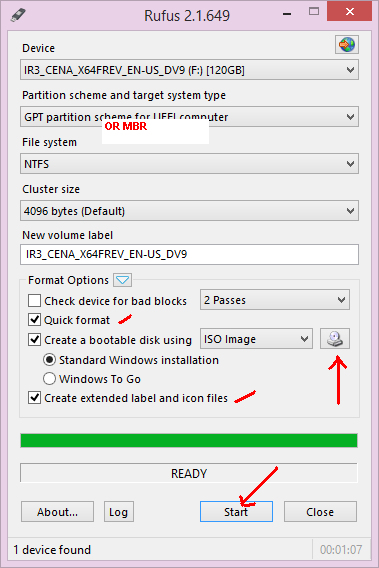
- Step 1: Download and run Rufus
- Step 2: From the device drop down menu select your USB flash drive
- Step 3: For partition scheme . Select “ GPT partitionscheme for UEFI computer “ if you have a UEFI enabled Bios , otherwise select “ MBR partition scheme for BIOS and UEFI computer “ .
- Step 4: For file system select Fat 32 if your windows 8.1 ISO file size is below 4 GB else choose NTFS . For a UEFI bios it is compulsory to have a FAT32 file system .
- Step 5: Leave the cluster size at default and check the quick format option .
- Step 6: check “ create a bootable disk using “ and select ISO image and select the Windows 8.1 ISO image .
- Step 7: Check “ create extendable label and icon “
- Step 8: Now click on start to create your bootable Windows 8.1 USB flash drive .
Available link for download

Friday, January 20, 2017
How To Create A Bootable USB To Install Any OS ! Guide
How To Create A Bootable USB To Install Any OS ! Guide

How To Create A Bootable USB To Install Any OS
You have downloaded an ISO file and now you need to create a Bootable USB flash drive using it. So how do you do it?
If you are using Windows, you can use the free Windows USB/DVD download tool provided by Microsoft to create a Bootable USB flash drive using the downloaded ISO file. This tool is only provided with the purpose of creating Bootable USB flash drives for windows operating systems only.
While the tool is able to create Bootable USB flash drives easily, it does has its fare share of problems too. For example, the tool requires you to install Net Framework 2.0 before you install it and even if you do so, the tool is too slow compared to other similar tools available for creating Bootable USB flash drives.
For those who are looking to create Bootable USB flash drive for almost any OS, here a guide that will help you to do it the easy way. Before we proceed with the process of creating an USB flash drive from an ISO file, here are all the things that you will needing in this process.
Download Rufus
Once you have resourced or downloaded the ISO file for the OS that you want to install, you will then need to download a free tool called as Rufus which will help you to create a Bootable USB flash drives from an ISO image.You can download this software from given link below the post
How to Create a Bootable USB Drive for Installing almost any OS
Once you have resourced the ISO file and installed Rufus, you can follow the instructions provided below to create abootable USB Flash Drive.
- Step 1: Run Rufus with administrator rights on Windows
- Step 2: Click on Device and select the USB Flash Drive
- Step 3: For the Partition scheme select any of the following
Select “ MBR partition scheme for BIOS or UEFI computers “ for BIOS boot modeSelect “ GPT partition scheme for UEFI computer ” for UEFI boot mode.
- Step 4: Select the NTFS file system if the ISO file is more than 4GB in size [screenshot]
- Step 5: Leave the cluster size as default.
- Step 6: Under the format options select the following [screenshot]
Select “ Quick Format “Select “ Create extended label and icon files “Select “ Create a bootable disk using “
- Step 7: Click on the drive icon beside “ Create a bootable disk using “ to select the ISO file [screenshot]
- Step 8: Finally verify all the above settings and click on the Start button to write the Bootable ISO onto the USB flash drive [screenshot]
Similarly you can also follow the above steps for creating Bootable USB drives for other operating systems such as Linux and more. One of the best things about Bootable USb flash drives is the free space on the USB drive is usable.
Now you can connect the USB flash drive to your PC and carry on with installing the OS.
List of Operating Systems supported by Rufus
Here is a list of operating systems that are officially supported by Rufus.
Here is a list of operating systems that are officially supported by Rufus.
- Arch Linux
- Archbang
- BartPE/pebuilder
- CentOS
- Damn Small Linux
- Fedora
- FreeDOS
- Gentoo
- GParted
- gNewSense
- Hiren’s Boot CD
- LiveXP
- Knoppix
- KolibriOS
- Kubuntu
- Linux Mint
- NT Password Registry Editor
- OpenSUSE
- Parted Magic
- Partition Wizard
- ReactOS
- rEFInd
- Slackware
- Tails
- Trinity Rescue Kit
- Ubuntu
- Ultimate Boot CD
- Windows XP (SP2+)
- Windows Server 2003 R2
- Windows Vista
- Windows 7
- Windows 8
- Windows 8.1
- Windows 10
Download
Rufus 2.2 for Windows (808 KB)
Available link for download
Subscribe to:
Posts (Atom)