Showing posts with label drives. Show all posts
Showing posts with label drives. Show all posts
Sunday, March 12, 2017
Hide empty drives in Windows 10 Beginners guide Updated
Hide empty drives in Windows 10 Beginners guide Updated
Hide empty drives in Windows 10 that resides in the computer folder or this PC - Thats what we
gonna see in this post -Works on Windows 10
Creators Update, Windows 10 Anniversary Update, and other editions of Windows like Windows 10
earlier builds like Aug 2015 and Nov 2015 builds.
In our last post, we had seen how to Show hidden folders , in this post lets see how to hide empty drives in Windows 10.
gonna see in this post -Works on Windows 10
Creators Update, Windows 10 Anniversary Update, and other editions of Windows like Windows 10
earlier builds like Aug 2015 and Nov 2015 builds.
In our last post, we had seen how to Show hidden folders , in this post lets see how to hide empty drives in Windows 10.
Do you need any software ??
No, you dont require any software to hide empty drives like System drive or to hide drives with
no media in our windows 10 PC.
no media in our windows 10 PC.
Then, how to do it..?
Just follow the below steps..
Note : There are different steps we can use to hide the empty drive, like using Powershell,
Registry, Command prompt and so on.
Listed, here are the basic steps that doesnt require any knowledge of using Command prompt
commands or powershell commands,
How to hide empty drives or files with no media in Windows 10
Note : There are different steps we can use to hide the empty drive, like using Powershell,
Registry, Command prompt and so on.
Listed, here are the basic steps that doesnt require any knowledge of using Command prompt
commands or powershell commands,
How to hide empty drives or files with no media in Windows 10
1) First, Open your File explorer
If you dont know, how it is , then dont worry, just click on the below helpful link (what is file...)
[Helpful link : What is file explorer and how to open it]
2) When you have opened the file explorer you can find various tabs on the top of the pane
like File, Home, Share, View..
3) Click on the view tab.
4) It will display the Navigation pane and other related options like layout,current view, show or hide, etc..
5) When you are on the step 4, click on the options option
6)Select Change Folder and Search Options.
7) it Will open a New Window named folder options,on that find Click items as follows
Which Will be on View tab.
8) Under Advanced settings, scroll down and find the option "Hide empty drives"
9) Check the box " Hide empty drives"

10) Click on Apply
11) Click on OK.
Thats it..
if the hide empty drives option is not working, then simply restart your PC.
Hope it is helpful.
Thats the end of this post...
Click to read all basic tutorials..
5) When you are on the step 4, click on the options option
6)Select Change Folder and Search Options.
7) it Will open a New Window named folder options,on that find Click items as follows
Which Will be on View tab.
8) Under Advanced settings, scroll down and find the option "Hide empty drives"
9) Check the box " Hide empty drives"
10) Click on Apply
11) Click on OK.
Thats it..
if the hide empty drives option is not working, then simply restart your PC.
Hope it is helpful.
Thats the end of this post...
Click to read all basic tutorials..
Available link for download

Sunday, February 26, 2017
Create bootable USB drives to install windows 7 windows 8 or 8 1
Create bootable USB drives to install windows 7 windows 8 or 8 1

Rufus is a utility that helps format and create bootable USB flash drives, such as USB keys/pendrives, memory sticks, etc.
It can be especially useful for cases where:
you need to create USB installation media from bootable ISOs (Windows, Linux, UEFI, etc.)Despite its small size, Rufus provides everything you need!
you need to work on a system that doesnt have an OS installed
you need to flash a BIOS or other firmware from DOS
you want to run a low-level utility
Instructions to create a bootable Windows 8.1 USB Flash drive
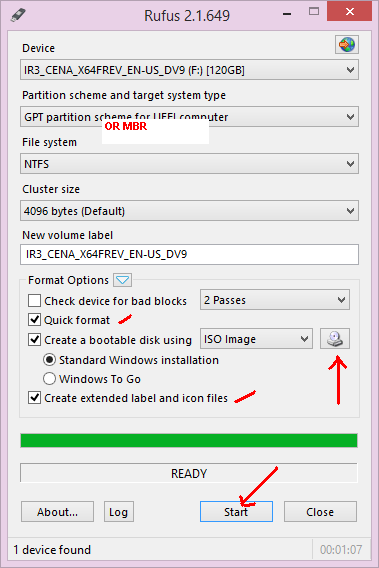
- Step 1: Download and run Rufus
- Step 2: From the device drop down menu select your USB flash drive
- Step 3: For partition scheme . Select “ GPT partitionscheme for UEFI computer “ if you have a UEFI enabled Bios , otherwise select “ MBR partition scheme for BIOS and UEFI computer “ .
- Step 4: For file system select Fat 32 if your windows 8.1 ISO file size is below 4 GB else choose NTFS . For a UEFI bios it is compulsory to have a FAT32 file system .
- Step 5: Leave the cluster size at default and check the quick format option .
- Step 6: check “ create a bootable disk using “ and select ISO image and select the Windows 8.1 ISO image .
- Step 7: Check “ create extendable label and icon “
- Step 8: Now click on start to create your bootable Windows 8.1 USB flash drive .
Available link for download
Subscribe to:
Posts (Atom)