Showing posts with label beginners. Show all posts
Showing posts with label beginners. Show all posts
Sunday, March 12, 2017
Hide empty drives in Windows 10 Beginners guide Updated
Hide empty drives in Windows 10 Beginners guide Updated
Hide empty drives in Windows 10 that resides in the computer folder or this PC - Thats what we
gonna see in this post -Works on Windows 10
Creators Update, Windows 10 Anniversary Update, and other editions of Windows like Windows 10
earlier builds like Aug 2015 and Nov 2015 builds.
In our last post, we had seen how to Show hidden folders , in this post lets see how to hide empty drives in Windows 10.
gonna see in this post -Works on Windows 10
Creators Update, Windows 10 Anniversary Update, and other editions of Windows like Windows 10
earlier builds like Aug 2015 and Nov 2015 builds.
In our last post, we had seen how to Show hidden folders , in this post lets see how to hide empty drives in Windows 10.
Do you need any software ??
No, you dont require any software to hide empty drives like System drive or to hide drives with
no media in our windows 10 PC.
no media in our windows 10 PC.
Then, how to do it..?
Just follow the below steps..
Note : There are different steps we can use to hide the empty drive, like using Powershell,
Registry, Command prompt and so on.
Listed, here are the basic steps that doesnt require any knowledge of using Command prompt
commands or powershell commands,
How to hide empty drives or files with no media in Windows 10
Note : There are different steps we can use to hide the empty drive, like using Powershell,
Registry, Command prompt and so on.
Listed, here are the basic steps that doesnt require any knowledge of using Command prompt
commands or powershell commands,
How to hide empty drives or files with no media in Windows 10
1) First, Open your File explorer
If you dont know, how it is , then dont worry, just click on the below helpful link (what is file...)
[Helpful link : What is file explorer and how to open it]
2) When you have opened the file explorer you can find various tabs on the top of the pane
like File, Home, Share, View..
3) Click on the view tab.
4) It will display the Navigation pane and other related options like layout,current view, show or hide, etc..
5) When you are on the step 4, click on the options option
6)Select Change Folder and Search Options.
7) it Will open a New Window named folder options,on that find Click items as follows
Which Will be on View tab.
8) Under Advanced settings, scroll down and find the option "Hide empty drives"
9) Check the box " Hide empty drives"
![Hide empty drives in Windows 10 - [Beginners guide] [Updated]](https://blogger.googleusercontent.com/img/b/R29vZ2xl/AVvXsEhVDYtyRcgCiSZVT2_1jNiu2fYDkqEqiQOkT9sJducOhIwTZQOxDjrHwks18b8ahFf_3GwWQWxYfYCWxzXLBax8sdv6FYgEVjKX9RCbVzKmrGX_hqhuXQ1ktCIagcGo6kbTWQuXf76Aa-A/s320/hide-empty-drives.gif "Hide empty drives in Windows 10 - [Beginners guide] [Updated]")
10) Click on Apply
11) Click on OK.
Thats it..
if the hide empty drives option is not working, then simply restart your PC.
Hope it is helpful.
Thats the end of this post...
Click to read all basic tutorials..
5) When you are on the step 4, click on the options option
6)Select Change Folder and Search Options.
7) it Will open a New Window named folder options,on that find Click items as follows
Which Will be on View tab.
8) Under Advanced settings, scroll down and find the option "Hide empty drives"
9) Check the box " Hide empty drives"
10) Click on Apply
11) Click on OK.
Thats it..
if the hide empty drives option is not working, then simply restart your PC.
Hope it is helpful.
Thats the end of this post...
Click to read all basic tutorials..
Available link for download

Thursday, March 9, 2017
22 Silhouette CAMEO Tutorials Tips and Tricks for Beginners on Up!
22 Silhouette CAMEO Tutorials Tips and Tricks for Beginners on Up!
Its hard to believe July has come and gone, but here we are with even 22 more Silhouette CAMEO tutorials under our belt!
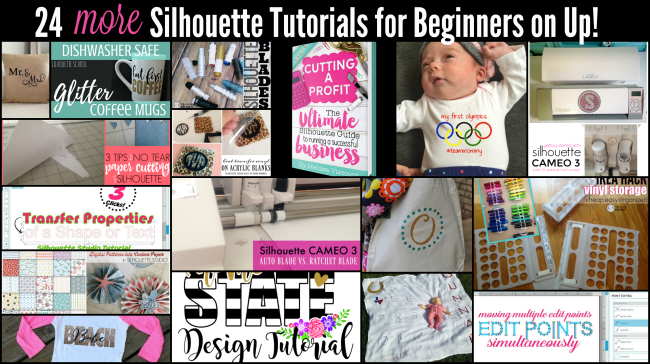
If you missed class at all I know youre a wee bit sad you missed out on all the fabulous stuff that happened in July like the launch of my third full length book, Cutting a Profit: The Ultimate Silhouette Guide to Running a Successful Business, or the hands-down best way Ive found to store and organized vinyl rolls or the intro to the Silhouette CAMEO 3 before its release (coming this week!)
Since we dont want you to miss out either (be sure you sign up to get Silhouette School blog posts delivered to your email) heres a look back at all the Silhouette tutorials for CAMEO and Portrait beginners on up!
- Free You Are My Sunshine Design Cut File from Lori Whitlock
- Silhouette CAMEO 3 Getting Started Help for Beginners
- 5 Commercial Fonts with Special Characters That Open in Studio
- Move Multiple Edit Points In a Jif: Silhouette Tutorial
- Best Vinyl Storage Idea (5 Reasons This $1.99 Solution Is the Best)
- Free Olympic Rings Silhouette Studio Cut File
- Cutting a Profit: My New Book on Silhouette CAMEO for Business
- Silhouette CAMEO 3 Auto Blade vs Ratchet Blade: First Look
- DIY Baby Blanket Tutorial with Silhouette CAMEO and HTV
- Vinyl Nail Decal Tips and Sizing Guidelines: Silhouette Tutorial
- Silhouette CAMEO Print and Cut Hack to Re-Use Pre-printed Papers
- Free Monogram Frame Silhouette Studio Cut File
- Designing in Silhouette Studio: Creating Layered State Decals
- Putting Heat Transfer Vinyl on Acrylic Blanks!
- Silhouette Blades...Which Blade to Use When, Why, and How
- Amazon Prime Day 2016: Silhouette CAMEO Accessory on my Must Have List
- Free Beach Babe Silhouette Studio Cut File
- Glitter Heat Transfer Vinyl for Dishwasher Safe Mugs
- How to Create and Print Patterned Paper: Silhouette Tutorial
- Silhouette Studio Transfer Properties Tool Tutorial
- Silhouette CAMEO Paper Tutorial: Dos and Donts
- Free Mr and Mrs Silhouette Studio Cut File
Note: This post may contain affiliate links. By clicking on them and purchasing products through my links, I receive a small commission. Thats what helps fund Silhouette School so I can keep buying new Silhouette-related products to show you how to get the most out of your machine!
Thanks for coming to class today at Silhouette School. If you like what you see, Id love for you to pin it!




Get Silhouette School lessons delivered to your email inbox! Select Once Daily or Weekly.
Subscribe Here!

Available link for download
Monday, February 27, 2017
Photoshop For Beginners Magbook 2013 PDF Version
Photoshop For Beginners Magbook 2013 PDF Version

Photoshop For Beginners Magbook will show you how to use Photoshop to improve your pictures. Walking you through the features and showing you how to use the right tools for the job, you will be able to edit your photos in no time. Designed for absolute beginners and Windows and Mac users alike, youll find all the information you need to get started.
Page : 132
Size : 97.12 MB
To Download (PDF Version) :
Size : 97.12 MB
To Download (PDF Version) :
Mediafire
How to download :
1. Click the link
2. Wait for 5 seconds countdown at the top right side
3. Click Skip Ad
4. Ready to Download
Available link for download
Sunday, February 26, 2017
How to turn off or disable sleep mode in Windows 10 Updated Beginners way
How to turn off or disable sleep mode in Windows 10 Updated Beginners way
Turn off or Disable sleep mode in Windows 10 - thats what we gonna
see in this post - Works on Windows 10 Creators Update, Windows 10
Anniversary Update, and other editions of Windows like Windows 10 earlier builds like Aug 2015
and Nov 2015 builds.
Everyday, we are seeing different posts that help beginners alot.. like how to pin an app to start
menu, taskbar and how to unpin the same... In this post lets see how to disable sleep mode in
windows 10.
to disable sleep function or to disable sleep mode in windows 10 , we dont need an software to do
the process, all we need to explore the options which im gonna in this post..
Where is sleep mode located??
See this post which says where you can find the sleep mode settings( will open in new window)..
the above post, shows only where its settings are located, but to turn off or disable sleep mode you
need to follow this post..
How to remove sleep mode from start menu and shutdown menu..
Just follow the below steps..
1) Open Control Panel.
[Helpful link : How to Open control panel in Windows 10 in different ways ]
Step 3 : Click on Hardware and Sound.
Step 4 : Find and Click On Change What the Power buttons do.
"the Option Change What the Power button do Will be Available under Power Options on right pane.
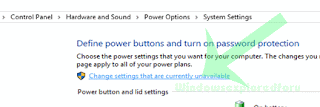
Step 5 : Click on Change Settings that Are unavailable on the Window that Opens.
see in this post - Works on Windows 10 Creators Update, Windows 10
Anniversary Update, and other editions of Windows like Windows 10 earlier builds like Aug 2015
and Nov 2015 builds.
Everyday, we are seeing different posts that help beginners alot.. like how to pin an app to start
menu, taskbar and how to unpin the same... In this post lets see how to disable sleep mode in
windows 10.
to disable sleep function or to disable sleep mode in windows 10 , we dont need an software to do
the process, all we need to explore the options which im gonna in this post..
Where is sleep mode located??
See this post which says where you can find the sleep mode settings( will open in new window)..
the above post, shows only where its settings are located, but to turn off or disable sleep mode you
need to follow this post..
How to remove sleep mode from start menu and shutdown menu..
Just follow the below steps..
1) Open Control Panel.
[Helpful link : How to Open control panel in Windows 10 in different ways ]
Step 3 : Click on Hardware and Sound.
Step 4 : Find and Click On Change What the Power buttons do.
"the Option Change What the Power button do Will be Available under Power Options on right pane.
Step 5 : Click on Change Settings that Are unavailable on the Window that Opens.
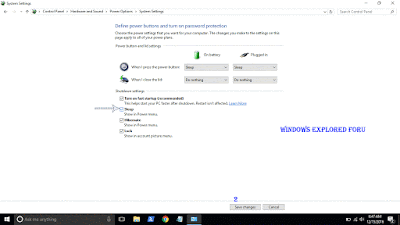
Step 6 : Clicking on it will enable grayed out shutdown settings..
Below the shutdown settings ,you will see various options like Turn on Fast startup, Sleep ,
Hibernate,etc..
Hibernate,etc..
Step 7 : Uncheck the Sleep option check box.
Step 8 : Click on Save Changes..
Thats it...
Now, visit again your start menu.. Boom?? sleep problem will be resolved you will get back your
sleep option, ..
sleep option, ..
Enjoy..
Available link for download
Saturday, February 25, 2017
How to Open Registry editor in Windows 10 Beginners way
How to Open Registry editor in Windows 10 Beginners way
How to open registry editor in Windows 10 - Creators Update, Anniversary Update and earlier
builds of Windows like Windows 8.1, Windows 8 and Windows 7 - Tutorial
We people who are familar with some knowledge of Windows will instruct you to open registry
editor and do that task, this task,etc.. But only some of us will show the way to open Registry editor
in windows 10. When it comes to customizing Operating System (especially windows) we need to
know the way of Opening registry to edit or for altering registry.
So, in this post lets see how to Open registry editor in Windows ...
There are many ways, we can access the Registry editor on Windows 10
Listed below are the most common and easiest ways to open regedit.
How to Open regedit in Windows 10 through Command Prompt and How to run registry editor as Administrator.
1) First Run Command Prompt As Administrator..
Dont know, how it is ?? dont worry my friend, check the below link, i had shown how it is
[ How to Run Cmd as Administrator]
2) Type the command regedit
It will Open Registry editor as Admin.
How to Open regedit in Windows 10 through Powershell
1) Launch Powershell
[Helpful link : how to Open Powershell in Windows 10]
2) Type the command regedit
or . egedt32.exe
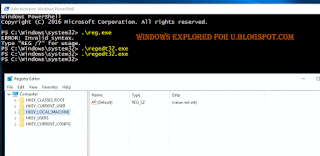
It will Open Registry editor ??
How to Open Regedit using Run Command
Ever heared about run command ? if not then you will know what it is now..
1) Just press Windows + R Key
The Window, that was displayed now is run command, using this you can run any program.
2) Type the command regedit
It will Open Registry editor
These are the easiest ways to access registry HKey in Windows 10, which are nothing but the part of registry key,
Bonus way..
I like to show the easiest way that comes in handy, but these wont work in some builds of earlier version of Windows like 7.
1) Press Windows Key
2) Type the command regedit
3) Select the top most result ( regedit run command)
It will Open Registry editor..
Thats it..
Now, you had learnt how to open registry editor in windows using different methods, You can use
this methods to show how to Find Registry editor in Windows 10 when someone ask you how to
do it, remember you dont need to download Registry editor, as it is available by default ..
Hope it is helpful.
builds of Windows like Windows 8.1, Windows 8 and Windows 7 - Tutorial
We people who are familar with some knowledge of Windows will instruct you to open registry
editor and do that task, this task,etc.. But only some of us will show the way to open Registry editor
in windows 10. When it comes to customizing Operating System (especially windows) we need to
know the way of Opening registry to edit or for altering registry.
So, in this post lets see how to Open registry editor in Windows ...
There are many ways, we can access the Registry editor on Windows 10
Listed below are the most common and easiest ways to open regedit.
How to Open regedit in Windows 10 through Command Prompt and How to run registry editor as Administrator.
1) First Run Command Prompt As Administrator..
Dont know, how it is ?? dont worry my friend, check the below link, i had shown how it is
[ How to Run Cmd as Administrator]
2) Type the command regedit
It will Open Registry editor as Admin.
How to Open regedit in Windows 10 through Powershell
1) Launch Powershell
[Helpful link : how to Open Powershell in Windows 10]
2) Type the command regedit
or . egedt32.exe
It will Open Registry editor ??
How to Open Regedit using Run Command
Ever heared about run command ? if not then you will know what it is now..
1) Just press Windows + R Key
The Window, that was displayed now is run command, using this you can run any program.
2) Type the command regedit
It will Open Registry editor
These are the easiest ways to access registry HKey in Windows 10, which are nothing but the part of registry key,
Bonus way..
I like to show the easiest way that comes in handy, but these wont work in some builds of earlier version of Windows like 7.
1) Press Windows Key
2) Type the command regedit
3) Select the top most result ( regedit run command)
It will Open Registry editor..
Thats it..
Now, you had learnt how to open registry editor in windows using different methods, You can use
this methods to show how to Find Registry editor in Windows 10 when someone ask you how to
do it, remember you dont need to download Registry editor, as it is available by default ..
Hope it is helpful.
Available link for download
Friday, February 24, 2017
Where is My computer how to open it and restore on desktop in Windows 10 Updated Beginners guide
Where is My computer how to open it and restore on desktop in Windows 10 Updated Beginners guide
How to open my computer in windows 10 - Thats what we gonna see in this post. If you are new
to windows 10 then the first thing you will notice is my computer icon missing in desktop. You
may think about it like where did my desktop go on windows 10,that was working before upgrade
or clean installation. if you are the one who search my computer then
here is an post that will show you how to put my computer on desktop and how to open my
computer in Windows 10. -Works on Windows 10
Creators Update, Windows 10 Anniversary Update, and other editions of Windows like Windows 10
earlier builds like Aug 2015 and Nov 2015 builds.
Where is my computer in Windows 10 ?
First, i like to tell a important note.. there is no my computer and you will no longer find my
computer in windows 10??
just joking., dont be serious.. you wont see the my computer as it is in Windows 10 because they
had renamed the My computer to This PC in Windows 10. So start saying This PC from now on.
How to open my computer in Windows 10 ?
There are many ways you can open my computer or This PC however here is an easiest way to open
my computer in Windows 10.
1) Press Windows Key
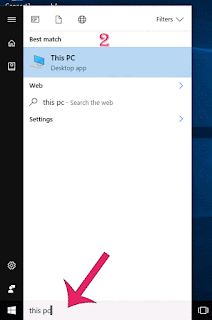
2) Type This PC
3) Select the top most result ( This PC) desktop app
It will open my computer in your PC.
How to get my computer on desktop in windows 10..
We had opened the this PC app, now its time to create shortcut for this PC in desktop
just follow the below steps..
If you wish to create shortcut for my computer to launch on Windows 10, then you are lucky as you
dont need to do some great tasks, all you just need to do is to enable its desktop icon..
if you wish to enable desktop icon for my computer, then simply follow the steps shown in the below
Post.
How to put my computer to desktop [Link]
Thats it..
Using the steps shown in the post, you can pin my computer to desktop or you can put my computer
on any desktop and laptops..
Comment if you have any doubts..
Hope it is helpful.
Are you a beginner ? then here are all posts that deals with mastering basics of Windows 10.
Click to see all the basic tutorials
to windows 10 then the first thing you will notice is my computer icon missing in desktop. You
may think about it like where did my desktop go on windows 10,that was working before upgrade
or clean installation. if you are the one who search my computer then
here is an post that will show you how to put my computer on desktop and how to open my
computer in Windows 10. -Works on Windows 10
Creators Update, Windows 10 Anniversary Update, and other editions of Windows like Windows 10
earlier builds like Aug 2015 and Nov 2015 builds.
Where is my computer in Windows 10 ?
First, i like to tell a important note.. there is no my computer and you will no longer find my
computer in windows 10??
just joking., dont be serious.. you wont see the my computer as it is in Windows 10 because they
had renamed the My computer to This PC in Windows 10. So start saying This PC from now on.
How to open my computer in Windows 10 ?
There are many ways you can open my computer or This PC however here is an easiest way to open
my computer in Windows 10.
1) Press Windows Key
2) Type This PC
3) Select the top most result ( This PC) desktop app
It will open my computer in your PC.
How to get my computer on desktop in windows 10..
We had opened the this PC app, now its time to create shortcut for this PC in desktop
just follow the below steps..
If you wish to create shortcut for my computer to launch on Windows 10, then you are lucky as you
dont need to do some great tasks, all you just need to do is to enable its desktop icon..
if you wish to enable desktop icon for my computer, then simply follow the steps shown in the below
Post.
How to put my computer to desktop [Link]
Thats it..
Using the steps shown in the post, you can pin my computer to desktop or you can put my computer
on any desktop and laptops..
Comment if you have any doubts..
Hope it is helpful.
Are you a beginner ? then here are all posts that deals with mastering basics of Windows 10.
Click to see all the basic tutorials
Available link for download
Wednesday, February 15, 2017
How to find my device have Bluetooth or not in Windows 10 In 2 Steps Beginners guide Updated
How to find my device have Bluetooth or not in Windows 10 In 2 Steps Beginners guide Updated
Check my device have Bluetooth or not in Windows 10 - if you are the one who have questions
like does my computer have bluetooth windows 10 (or) does my laptop have bluetooth
windows 10
(or)
does my pc have bluetooth windows 10(Or) how to know if my computer has bluetooth
windows 10, etc then here is an guide to find your device have Bluetooth capability in Windows 10.
Works on Windows 10 Creators Update, Windows 10
Anniversary Update, and other editions of Windows like Windows 10 earlier builds like Aug 2015
and Nov 2015 builds.

Do we need software ??
No, we dont need an software to find whether your device have bluetooth or not..
Then, how to find it if im a beginner ?
Just follow the below steps..
How to check whether your windows 10 laptop or Windows 10 desktop have Bluetooth or not..
1) First, open device manager on your PC
Dont know, how ?? Dont worry, let me help you. Follow the instructions shown in the below link..
[Helpful link : How to Open Device Manager in Windows 10 [Guide]]
2) When you had Opened device manager, then you will see the list of devices connected to your
device..
Find Whether you have bluetooth text on the device manager box..

If you have Bluetooth text there, your device have Bluetooth facility..If there is no such text,
then your device doesnt have Bluetooth device.
Thats it..
Wait ..! Do you have performed bluetooth transfer before upgrading or does your Manufacturer said, the device have Bluetooth and you cant find it here ?
Dont worry...Follow the Steps shown in this post [Link]
If you want to connect a bluetooth keyboard or Bluetooth mouse , then you need to pair the bluetooth
on Windows 10 first.. Check the below link for details.
[How to connect Bluetooth keyboard and Bluetooth mouse in Windows 10 ]
Are you a beginner ? then here are all posts that deals with mastering basics of Windows 10.
Click to see all the basic tutorials
like does my computer have bluetooth windows 10 (or) does my laptop have bluetooth
windows 10
(or)
does my pc have bluetooth windows 10(Or) how to know if my computer has bluetooth
windows 10, etc then here is an guide to find your device have Bluetooth capability in Windows 10.
Works on Windows 10 Creators Update, Windows 10
Anniversary Update, and other editions of Windows like Windows 10 earlier builds like Aug 2015
and Nov 2015 builds.
Do we need software ??
No, we dont need an software to find whether your device have bluetooth or not..
Then, how to find it if im a beginner ?
Just follow the below steps..
How to check whether your windows 10 laptop or Windows 10 desktop have Bluetooth or not..
1) First, open device manager on your PC
Dont know, how ?? Dont worry, let me help you. Follow the instructions shown in the below link..
[Helpful link : How to Open Device Manager in Windows 10 [Guide]]
2) When you had Opened device manager, then you will see the list of devices connected to your
device..
Find Whether you have bluetooth text on the device manager box..
If you have Bluetooth text there, your device have Bluetooth facility..If there is no such text,
then your device doesnt have Bluetooth device.
Thats it..
Wait ..! Do you have performed bluetooth transfer before upgrading or does your Manufacturer said, the device have Bluetooth and you cant find it here ?
Dont worry...Follow the Steps shown in this post [Link]
If you want to connect a bluetooth keyboard or Bluetooth mouse , then you need to pair the bluetooth
on Windows 10 first.. Check the below link for details.
[How to connect Bluetooth keyboard and Bluetooth mouse in Windows 10 ]
Are you a beginner ? then here are all posts that deals with mastering basics of Windows 10.
Click to see all the basic tutorials
Available link for download
Tuesday, January 31, 2017
How to find all your apps and programs in Windows 10 Beginners guide Updated
How to find all your apps and programs in Windows 10 Beginners guide Updated
How to find programs or applications that installed on my system - thats what we gonna
see in this post - Works on Windows 10 Creators Update, Windows 10
Anniversary Update, and other editions of Windows like Windows 10 earlier builds like Aug 2015
and Nov 2015 builds.
In our last post, we had seen how to pin an application to start menu in windows 10. In this post lets see how to find all programs in Windows 10.
There are couple of ways, we can find program list in windows 10.
However, i like to point out only the basic and most easiest ways in windows 10. So, if you are
looking for where i can find the list of programs installed on my system, then i hope this guide is
helpful for you.
How to find all apps in windows 10 - Method 1
1) Press windows (logo) Key
(or) Press start button.
![How to find all your apps and programs in Windows 10 [Beginners guide] [Updated]](https://blogger.googleusercontent.com/img/b/R29vZ2xl/AVvXsEiDIRe8pdNPX-F7BpTVQ1lHDcpYCnhE2YzaHXKhHgw9Gh65CTo9eVTVIaU-wnhaa0es11GXVPRpbqRj2tquzm7vpmdBoatRLyjfsUDPweI6AT4thbysePrd-Zj03CD9aaP7bDzS8mgi96g/s320/show-list-of-programs-installed.gif "How to find all your apps and programs in Windows 10 [Beginners guide] [Updated]`")
2) You will see all the apps installed on your system including the store apps.
How to find all programs in Windows 10 - Method 2
1) Open control panel
[Helpful link : How to Open control panel in Windows 10 in different ways ]
![How to find all your apps and programs in Windows 10 [Beginners guide] [Updated]](https://blogger.googleusercontent.com/img/b/R29vZ2xl/AVvXsEjA9PO38OfNTuyozoQmRKN8pxUqqu1aDJIhntbeUlEUjU-UTCGDgHho470GZG7RgbxA4EfliKsz27E6UwY1Q-PqkoiwVqtkpqK_2dTSlzidxWHHgRizVrICxc4fDhh4HlFE8rxK5MF2fe4/s320/show-list-of-programs-installed.gif "How to find all your apps and programs in Windows 10 [Beginners guide] [Updated]")
How to auto Shutdown your Windows 10 PC at particular time??????
see in this post - Works on Windows 10 Creators Update, Windows 10
Anniversary Update, and other editions of Windows like Windows 10 earlier builds like Aug 2015
and Nov 2015 builds.
In our last post, we had seen how to pin an application to start menu in windows 10. In this post lets see how to find all programs in Windows 10.
There are couple of ways, we can find program list in windows 10.
However, i like to point out only the basic and most easiest ways in windows 10. So, if you are
looking for where i can find the list of programs installed on my system, then i hope this guide is
helpful for you.
How to find all apps in windows 10 - Method 1
1) Press windows (logo) Key
(or) Press start button.
2) You will see all the apps installed on your system including the store apps.
How to find all programs in Windows 10 - Method 2
1) Open control panel
[Helpful link : How to Open control panel in Windows 10 in different ways ]
2) On the top edge you will find the search box, click on it and type Program and features
3) Click on the Show which program is installed on this system which will be available
in the search result under program and features.
There, you will find the list of programs currently installed on your system
Thats it..
Other Postss..
Click to see all Windows 10 basic articles..
Available link for download
Subscribe to:
Posts (Atom)