Showing posts with label turn. Show all posts
Showing posts with label turn. Show all posts
Wednesday, March 8, 2017
Airplane Mode in Windows 10 How to turn on or turn off in Windows 10 in Just 2 steps Updated
Airplane Mode in Windows 10 How to turn on or turn off in Windows 10 in Just 2 steps Updated
Airplane Mode in Windows 10 - How to turn on or turn off in Windows 10 - Thats what we gonna
see in this post - Works on Windows 10
Creators Update, Windows 10 Anniversary Update, and other editions of Windows like Windows 10
earlier builds like Aug 2015 and Nov 2015 builds.
If you are experiencing Airplane Mode issues like struck on Airplane mode, or if you cannot turn off
airplane mode in windows 10 then, i recommend you to follow the steps shown in this guide
[link],else just follow the steps shown in the post..
What is Airplane Mode or flight mode ?
Airplane mode is nothing but the thing used to control our communications. What will happen when
you turned on airplane mode is many things like your Cellular network wont work on PC, you
cannot connect to internet ( WiFi may work sometimes) but basically it is the mode designed to
block all internet connections coming towards your PC.
How to turn on or turn off Airplane mode in Windows 10
If you wish to turn on or turn off airplane mode, then here are the steps..
If you are in earlier windows version build, then refer the steps shown in this article [Link]...
if you are in latest windows build like Windows 10 anniversary Update then, follow the steps below..
How to turn on Airplane mode in Windows 10 Anniversary Update
Note : The UI of Windows 10 doesnt changed much in Windows 10 creators Update as of Dec
19,2016 so you can follow the same steps in Windows 10 Creators update too..
1) Press Windows + I keys.
2) Click on Network and Internet
3) It will open a new window, with status as first option on the left pane.. Find the option called
Airplane Mode (it would be on left pane)
4) Now, on your right pane, you can find " Turn this on to stop all wireless communication, such
as WiFi, cellular, and Bluetooth."
5) Tap on the right side of the option, so that it looks ON.
Thats it..
If, you wish to disable Airplane Mode, then refer the steps below..

How to turn off Airplane mode in Windows 10 Anniversary Update
1) Press Windows + I keys.
2) Click on Network and Internet
3) It will open a new window, with status as first option on the left pane.. Find the option called
Airplane Mode (it would be on left pane)
4) Now, on your right pane, you can find " Turn this on to stop all wireless communication, such
as WiFi, cellular, and Bluetooth."
5) Tap on the left side of the option, so that it looks OFF.
Thats it..
Mmm,???? let me tell you the smart way, just click on the Network/WiFi icon on the Taskbar and
click on Airplane mode,if will turn it on or off there..
see in this post - Works on Windows 10
Creators Update, Windows 10 Anniversary Update, and other editions of Windows like Windows 10
earlier builds like Aug 2015 and Nov 2015 builds.
If you are experiencing Airplane Mode issues like struck on Airplane mode, or if you cannot turn off
airplane mode in windows 10 then, i recommend you to follow the steps shown in this guide
[link],else just follow the steps shown in the post..
What is Airplane Mode or flight mode ?
Airplane mode is nothing but the thing used to control our communications. What will happen when
you turned on airplane mode is many things like your Cellular network wont work on PC, you
cannot connect to internet ( WiFi may work sometimes) but basically it is the mode designed to
block all internet connections coming towards your PC.
How to turn on or turn off Airplane mode in Windows 10
If you wish to turn on or turn off airplane mode, then here are the steps..
If you are in earlier windows version build, then refer the steps shown in this article [Link]...
if you are in latest windows build like Windows 10 anniversary Update then, follow the steps below..
How to turn on Airplane mode in Windows 10 Anniversary Update
Note : The UI of Windows 10 doesnt changed much in Windows 10 creators Update as of Dec
19,2016 so you can follow the same steps in Windows 10 Creators update too..
1) Press Windows + I keys.
2) Click on Network and Internet
3) It will open a new window, with status as first option on the left pane.. Find the option called
Airplane Mode (it would be on left pane)
4) Now, on your right pane, you can find " Turn this on to stop all wireless communication, such
as WiFi, cellular, and Bluetooth."
5) Tap on the right side of the option, so that it looks ON.
Thats it..
If, you wish to disable Airplane Mode, then refer the steps below..
How to turn off Airplane mode in Windows 10 Anniversary Update
1) Press Windows + I keys.
2) Click on Network and Internet
3) It will open a new window, with status as first option on the left pane.. Find the option called
Airplane Mode (it would be on left pane)
4) Now, on your right pane, you can find " Turn this on to stop all wireless communication, such
as WiFi, cellular, and Bluetooth."
5) Tap on the left side of the option, so that it looks OFF.
Thats it..
Mmm,???? let me tell you the smart way, just click on the Network/WiFi icon on the Taskbar and
click on Airplane mode,if will turn it on or off there..
If you are struck on Airplane mode, then see whether my experience help you [How to overcome
struck in Airplane mode in windows 10 Link]
Hope it is helpful.
Thats the end of this post..
Click to read all other tutorials..
Click to read all other tutorials..
Available link for download

Saturday, March 4, 2017
Turn off or disable Metered connections in Window 10 we need to do it for Windows 10 Creators Update Guide
Turn off or disable Metered connections in Window 10 we need to do it for Windows 10 Creators Update Guide
Turn off or disable Metered connections in windows 10 - Thats what we gonna see in this post...
Works on Windows 10
Creators Update, Windows 10 Anniversary Update, and other editions of Windows like Windows 10
earlier builds like Aug 2015 and Nov 2015 builds...
In our last post, we had discussed how to turn on metered connections in Windows 10 so that you
can disable or delay updates, Prevent apps from auto downloading,etc..But ,if you have changed
your mind or wish to try the latest windows 10 build then you need to remove metered connections
for windows 10 download that updates. So here is a post, on how to do it..
[Check the above video tutorial,if you wish]
How to disable metered connection in Windows 10
1) Press Windows + I which will open settings.
2) Select Network & Internet.
3) Click on WiFi tab on the left pane.
4) Select Manage known networks option(Which will be on right Pane).
5) It will open a new window,on that click on the Network you wish to turn off metered connection.
6) When you clicked,it will Show Properties and forget, Select Properties.
7) Scroll down and Find Metered connection Slide/Click on left Side of the Option that available
under Metered Connections,show that it shows OFF.
Thats it...
Works on Windows 10
Creators Update, Windows 10 Anniversary Update, and other editions of Windows like Windows 10
earlier builds like Aug 2015 and Nov 2015 builds...
In our last post, we had discussed how to turn on metered connections in Windows 10 so that you
can disable or delay updates, Prevent apps from auto downloading,etc..But ,if you have changed
your mind or wish to try the latest windows 10 build then you need to remove metered connections
for windows 10 download that updates. So here is a post, on how to do it..
[Check the above video tutorial,if you wish]
Do you need any software ?
No, you dont need to download software to disable metered connection in Windows 10, just follow
the below steps..
the below steps..
How to disable metered connection in Windows 10
1) Press Windows + I which will open settings.
2) Select Network & Internet.
3) Click on WiFi tab on the left pane.
4) Select Manage known networks option(Which will be on right Pane).
5) It will open a new window,on that click on the Network you wish to turn off metered connection.
6) When you clicked,it will Show Properties and forget, Select Properties.
7) Scroll down and Find Metered connection Slide/Click on left Side of the Option that available
under Metered Connections,show that it shows OFF.
Thats it...
Are you a beginner ? then here are all posts that deals with mastering basics of Windows 10.
Click to see all the basic tutorials
Click to see all the basic tutorials
Available link for download
Monday, February 27, 2017
How to turn on or enable touchpad gestures in Windows 10 Updated
How to turn on or enable touchpad gestures in Windows 10 Updated
Turn on or enable touchpad gestures in Windows 10 - tutorial that will work on windows 10
creators update, windows 10 anniversary build and other builds of Windows 10.
In our last post, i had explained what is touchpad and how you can use gestures to make your work
simpler. But i hadnt explained how to turn on or enable touchpad gestures in windows 10 .
So, in this post in wish to explain how to turn on touchpad gestures in windows 10.
Do you need any software to turn on or turn off touchpad gestures ?
If you have drivers installed, then you dont need to install anything new..
How to do it ?
Enabling touchpad is very easy process.. Just follow the upcoming steps..
How to Enable touchpad gestures in Windows 10
1) 1) Press Windows + I keys.
2) Click on devices

creators update, windows 10 anniversary build and other builds of Windows 10.
In our last post, i had explained what is touchpad and how you can use gestures to make your work
simpler. But i hadnt explained how to turn on or enable touchpad gestures in windows 10 .
So, in this post in wish to explain how to turn on touchpad gestures in windows 10.
Do you need any software to turn on or turn off touchpad gestures ?
If you have drivers installed, then you dont need to install anything new..
How to do it ?
Enabling touchpad is very easy process.. Just follow the upcoming steps..
How to Enable touchpad gestures in Windows 10
1) 1) Press Windows + I keys.
2) Click on devices
3) It Will open a new window, on that select Mouse and touchpad option.
(Mouse and touchpad option will be available on the left pane)
4) When you clicked, it will open mouse and its settings on the right pane.
5) Now, look for an option called "touchpad" on your right pane, if you have precision touchpad,
then you will see that option.. Simply tap/click on the right side of the option to turn on.
6) But, if you have the non precision laptops then we cant turn it on directly..
The only choice we have is how touchpad gestures will work/ respond..

7) Now, under the touchpad there will be an option called "To prevent the cursor from accidentally moving while you type, change the delay before clicks works" that will help us to choose..
8) Simply, click on the item and set it to No delay or Short delay.
Thats it..
Other related articles :
Touchpad gestures in Windows 10 - The gestures that may help you..
(Mouse and touchpad option will be available on the left pane)
4) When you clicked, it will open mouse and its settings on the right pane.
5) Now, look for an option called "touchpad" on your right pane, if you have precision touchpad,
then you will see that option.. Simply tap/click on the right side of the option to turn on.
6) But, if you have the non precision laptops then we cant turn it on directly..
The only choice we have is how touchpad gestures will work/ respond..
Note :The above screen shot was taken on nonprecision laptop, so you wont see the touchpad option( i said on the above step 5)
on the above screenshot.
7) Now, under the touchpad there will be an option called "To prevent the cursor from accidentally moving while you type, change the delay before clicks works" that will help us to choose..
8) Simply, click on the item and set it to No delay or Short delay.
Thats it..
Other related articles :
Touchpad gestures in Windows 10 - The gestures that may help you..
Available link for download
Sunday, February 26, 2017
How to turn off or disable sleep mode in Windows 10 Updated Beginners way
How to turn off or disable sleep mode in Windows 10 Updated Beginners way
Turn off or Disable sleep mode in Windows 10 - thats what we gonna
see in this post - Works on Windows 10 Creators Update, Windows 10
Anniversary Update, and other editions of Windows like Windows 10 earlier builds like Aug 2015
and Nov 2015 builds.
Everyday, we are seeing different posts that help beginners alot.. like how to pin an app to start
menu, taskbar and how to unpin the same... In this post lets see how to disable sleep mode in
windows 10.
to disable sleep function or to disable sleep mode in windows 10 , we dont need an software to do
the process, all we need to explore the options which im gonna in this post..
Where is sleep mode located??
See this post which says where you can find the sleep mode settings( will open in new window)..
the above post, shows only where its settings are located, but to turn off or disable sleep mode you
need to follow this post..
How to remove sleep mode from start menu and shutdown menu..
Just follow the below steps..
1) Open Control Panel.
[Helpful link : How to Open control panel in Windows 10 in different ways ]
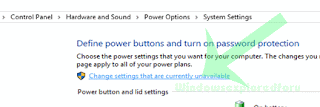
Step 3 : Click on Hardware and Sound.
Step 4 : Find and Click On Change What the Power buttons do.
"the Option Change What the Power button do Will be Available under Power Options on right pane.
Step 5 : Click on Change Settings that Are unavailable on the Window that Opens.
see in this post - Works on Windows 10 Creators Update, Windows 10
Anniversary Update, and other editions of Windows like Windows 10 earlier builds like Aug 2015
and Nov 2015 builds.
Everyday, we are seeing different posts that help beginners alot.. like how to pin an app to start
menu, taskbar and how to unpin the same... In this post lets see how to disable sleep mode in
windows 10.
to disable sleep function or to disable sleep mode in windows 10 , we dont need an software to do
the process, all we need to explore the options which im gonna in this post..
Where is sleep mode located??
See this post which says where you can find the sleep mode settings( will open in new window)..
the above post, shows only where its settings are located, but to turn off or disable sleep mode you
need to follow this post..
How to remove sleep mode from start menu and shutdown menu..
Just follow the below steps..
1) Open Control Panel.
[Helpful link : How to Open control panel in Windows 10 in different ways ]
Step 3 : Click on Hardware and Sound.
Step 4 : Find and Click On Change What the Power buttons do.
"the Option Change What the Power button do Will be Available under Power Options on right pane.
Step 5 : Click on Change Settings that Are unavailable on the Window that Opens.
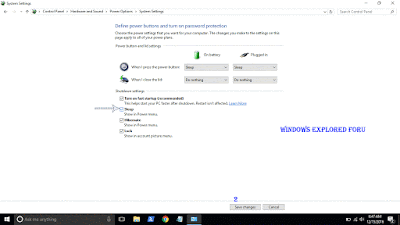
Step 6 : Clicking on it will enable grayed out shutdown settings..
Below the shutdown settings ,you will see various options like Turn on Fast startup, Sleep ,
Hibernate,etc..
Hibernate,etc..
Step 7 : Uncheck the Sleep option check box.
Step 8 : Click on Save Changes..
Thats it...
Now, visit again your start menu.. Boom?? sleep problem will be resolved you will get back your
sleep option, ..
sleep option, ..
Enjoy..
Available link for download
Subscribe to:
Posts (Atom)