Showing posts with label it. Show all posts
Showing posts with label it. Show all posts
Saturday, March 4, 2017
Turn off or disable Metered connections in Window 10 we need to do it for Windows 10 Creators Update Guide
Turn off or disable Metered connections in Window 10 we need to do it for Windows 10 Creators Update Guide
Turn off or disable Metered connections in windows 10 - Thats what we gonna see in this post...
Works on Windows 10
Creators Update, Windows 10 Anniversary Update, and other editions of Windows like Windows 10
earlier builds like Aug 2015 and Nov 2015 builds...
In our last post, we had discussed how to turn on metered connections in Windows 10 so that you
can disable or delay updates, Prevent apps from auto downloading,etc..But ,if you have changed
your mind or wish to try the latest windows 10 build then you need to remove metered connections
for windows 10 download that updates. So here is a post, on how to do it..
[Check the above video tutorial,if you wish]
How to disable metered connection in Windows 10
1) Press Windows + I which will open settings.
2) Select Network & Internet.
3) Click on WiFi tab on the left pane.
4) Select Manage known networks option(Which will be on right Pane).
5) It will open a new window,on that click on the Network you wish to turn off metered connection.
6) When you clicked,it will Show Properties and forget, Select Properties.
7) Scroll down and Find Metered connection Slide/Click on left Side of the Option that available
under Metered Connections,show that it shows OFF.
Thats it...
Works on Windows 10
Creators Update, Windows 10 Anniversary Update, and other editions of Windows like Windows 10
earlier builds like Aug 2015 and Nov 2015 builds...
In our last post, we had discussed how to turn on metered connections in Windows 10 so that you
can disable or delay updates, Prevent apps from auto downloading,etc..But ,if you have changed
your mind or wish to try the latest windows 10 build then you need to remove metered connections
for windows 10 download that updates. So here is a post, on how to do it..
[Check the above video tutorial,if you wish]
Do you need any software ?
No, you dont need to download software to disable metered connection in Windows 10, just follow
the below steps..
the below steps..
How to disable metered connection in Windows 10
1) Press Windows + I which will open settings.
2) Select Network & Internet.
3) Click on WiFi tab on the left pane.
4) Select Manage known networks option(Which will be on right Pane).
5) It will open a new window,on that click on the Network you wish to turn off metered connection.
6) When you clicked,it will Show Properties and forget, Select Properties.
7) Scroll down and Find Metered connection Slide/Click on left Side of the Option that available
under Metered Connections,show that it shows OFF.
Thats it...
Are you a beginner ? then here are all posts that deals with mastering basics of Windows 10.
Click to see all the basic tutorials
Click to see all the basic tutorials
Available link for download

Friday, February 24, 2017
Where is My computer how to open it and restore on desktop in Windows 10 Updated Beginners guide
Where is My computer how to open it and restore on desktop in Windows 10 Updated Beginners guide
How to open my computer in windows 10 - Thats what we gonna see in this post. If you are new
to windows 10 then the first thing you will notice is my computer icon missing in desktop. You
may think about it like where did my desktop go on windows 10,that was working before upgrade
or clean installation. if you are the one who search my computer then
here is an post that will show you how to put my computer on desktop and how to open my
computer in Windows 10. -Works on Windows 10
Creators Update, Windows 10 Anniversary Update, and other editions of Windows like Windows 10
earlier builds like Aug 2015 and Nov 2015 builds.
Where is my computer in Windows 10 ?
First, i like to tell a important note.. there is no my computer and you will no longer find my
computer in windows 10??
just joking., dont be serious.. you wont see the my computer as it is in Windows 10 because they
had renamed the My computer to This PC in Windows 10. So start saying This PC from now on.
How to open my computer in Windows 10 ?
There are many ways you can open my computer or This PC however here is an easiest way to open
my computer in Windows 10.
1) Press Windows Key
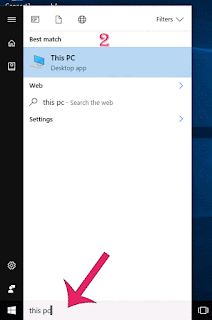
2) Type This PC
3) Select the top most result ( This PC) desktop app
It will open my computer in your PC.
How to get my computer on desktop in windows 10..
We had opened the this PC app, now its time to create shortcut for this PC in desktop
just follow the below steps..
If you wish to create shortcut for my computer to launch on Windows 10, then you are lucky as you
dont need to do some great tasks, all you just need to do is to enable its desktop icon..
if you wish to enable desktop icon for my computer, then simply follow the steps shown in the below
Post.
How to put my computer to desktop [Link]
Thats it..
Using the steps shown in the post, you can pin my computer to desktop or you can put my computer
on any desktop and laptops..
Comment if you have any doubts..
Hope it is helpful.
Are you a beginner ? then here are all posts that deals with mastering basics of Windows 10.
Click to see all the basic tutorials
to windows 10 then the first thing you will notice is my computer icon missing in desktop. You
may think about it like where did my desktop go on windows 10,that was working before upgrade
or clean installation. if you are the one who search my computer then
here is an post that will show you how to put my computer on desktop and how to open my
computer in Windows 10. -Works on Windows 10
Creators Update, Windows 10 Anniversary Update, and other editions of Windows like Windows 10
earlier builds like Aug 2015 and Nov 2015 builds.
Where is my computer in Windows 10 ?
First, i like to tell a important note.. there is no my computer and you will no longer find my
computer in windows 10??
just joking., dont be serious.. you wont see the my computer as it is in Windows 10 because they
had renamed the My computer to This PC in Windows 10. So start saying This PC from now on.
How to open my computer in Windows 10 ?
There are many ways you can open my computer or This PC however here is an easiest way to open
my computer in Windows 10.
1) Press Windows Key
2) Type This PC
3) Select the top most result ( This PC) desktop app
It will open my computer in your PC.
How to get my computer on desktop in windows 10..
We had opened the this PC app, now its time to create shortcut for this PC in desktop
just follow the below steps..
If you wish to create shortcut for my computer to launch on Windows 10, then you are lucky as you
dont need to do some great tasks, all you just need to do is to enable its desktop icon..
if you wish to enable desktop icon for my computer, then simply follow the steps shown in the below
Post.
How to put my computer to desktop [Link]
Thats it..
Using the steps shown in the post, you can pin my computer to desktop or you can put my computer
on any desktop and laptops..
Comment if you have any doubts..
Hope it is helpful.
Are you a beginner ? then here are all posts that deals with mastering basics of Windows 10.
Click to see all the basic tutorials
Available link for download
Pakistani IT Firm to Develop Software For Zimbabwe Railways
Pakistani IT Firm to Develop Software For Zimbabwe Railways

After a rigorous selection process which included various international players, DevBatch was awarded these projects by NRZ, it was announced.
The first project is to develop a website for NRZ’s passengers to reserve and buy train tickets online. This website will aim to provide NRZ’s passengers a simple, convenient and swift way of buying railway tickets.
The Pakistan based IT company will also work to develop back-office software for 8 to 10 levels of NRZ hierarchy. The software will assist NRZ to manage operations and finances related to ticketing. To make life easier for NRZ’s customers DevBatch will develop mobile apps for ticket collectors to issue and print tickets on the train carriages on and off station.
Commenting on winning these projects, DevBatch’s Chief Executive Officer (CEO) Waqas Pitafi said, “We are very excited to have won these projects amid touch competition from international competitors. DevBatch is representing Pakistan at the world stage and we are proud to have boosted Pakistan’s image in the global Information Technology (IT) industry.”
Hardware required for the development of these solutions will be provided by a local vendor located in Harare, Zimbabwe.
DevBatch has successfully served many global clients from USA, Canada, UK, Saudi Arabia, UAE, Qatar, and Bahrain and have provided end-to-end mobile solutions to our clients in Healthcare, Banking, Telecom and IT Sector.
Available link for download
Subscribe to:
Posts (Atom)