Showing posts with label open. Show all posts
Showing posts with label open. Show all posts
Thursday, March 9, 2017
Connect to Suggested open hotspot Enable or Disable in Windows 10 Updated
Connect to Suggested open hotspot Enable or Disable in Windows 10 Updated
Connect to Suggested open hotspots in Windows 10 - Thats what we gonna see in this post...
Works on Windows 10
Creators Update, Windows 10 Anniversary Update, and other editions of Windows like Windows 10
earlier builds like Aug 2015 and Nov 2015 builds...
Windows 10 has a built in technology named WiFi sense that will allow your PC to sense the WiFi networks that are open around your PC.
If your PC have WiFi turned on, and there is an open WiFi network appears around your device,
Windows will capture and will examine whether it is safe through internet..
If that was safe, then windows would automatically connect to that hotspot making your device
internet connected.
If you wish to connect to those safe hotspots, that are around your device or if you wish to disable connect to suggested open hotspot option in Windows 10, then here is your guide.
Just follow the steps below on your PC
1) Open settings
2) Click on Network & Internet
3) Click on WiFi tab available on the left pane
4) You can see some options changing on the right pane..
![Connect to Suggested open hotspot in Windows 10 [Updated]](https://blogger.googleusercontent.com/img/b/R29vZ2xl/AVvXsEjg04CGhAYAM6XXdxJ6pDNh5phzZCFmJOxpdRlsEwxcwpFIGC_OnKpRf0yFu6jfbszgQ0jKEoqMsrmFwrYztdW2PdVDFpJsHgFLavVuX-ebMbRZFkowkM5EHb9gnR30gxxA0DkPFcRPEFg/s320/connect-to-open.gif "Connect to Suggested open hotspot in Windows 10 [Updated]")
Now , you can see an Option named WiFi sense under that there will be some text " Connect to
suggested open hotspots..
If you wish to turn on Connect to suggested open hotspots..,then
Simply click/tap right side of the option, so that it looks off.
Remember not all networks are secure ????
Thats it..
On the other hand, if you wish to disable wifi sense or want to disable windows 10 automatically
connect to Unknown WiFi networks, then, simply click/tap on the left side of the option, so that it
looks off.
Thats it..
Youre done..
Are you a beginner ? then here are all posts that deals with mastering basics of Windows 10.
Click to see all the basic tutorials
Works on Windows 10
Creators Update, Windows 10 Anniversary Update, and other editions of Windows like Windows 10
earlier builds like Aug 2015 and Nov 2015 builds...
Windows 10 has a built in technology named WiFi sense that will allow your PC to sense the WiFi networks that are open around your PC.
If your PC have WiFi turned on, and there is an open WiFi network appears around your device,
Windows will capture and will examine whether it is safe through internet..
If that was safe, then windows would automatically connect to that hotspot making your device
internet connected.
If you wish to connect to those safe hotspots, that are around your device or if you wish to disable connect to suggested open hotspot option in Windows 10, then here is your guide.
Just follow the steps below on your PC
1) Open settings
2) Click on Network & Internet
3) Click on WiFi tab available on the left pane
4) You can see some options changing on the right pane..
Now , you can see an Option named WiFi sense under that there will be some text " Connect to
suggested open hotspots..
If you wish to turn on Connect to suggested open hotspots..,then
Simply click/tap right side of the option, so that it looks off.
Remember not all networks are secure ????
Thats it..
On the other hand, if you wish to disable wifi sense or want to disable windows 10 automatically
connect to Unknown WiFi networks, then, simply click/tap on the left side of the option, so that it
looks off.
Thats it..
Youre done..
Are you a beginner ? then here are all posts that deals with mastering basics of Windows 10.
Click to see all the basic tutorials
Available link for download

Saturday, February 25, 2017
How to Open Registry editor in Windows 10 Beginners way
How to Open Registry editor in Windows 10 Beginners way
How to open registry editor in Windows 10 - Creators Update, Anniversary Update and earlier
builds of Windows like Windows 8.1, Windows 8 and Windows 7 - Tutorial
We people who are familar with some knowledge of Windows will instruct you to open registry
editor and do that task, this task,etc.. But only some of us will show the way to open Registry editor
in windows 10. When it comes to customizing Operating System (especially windows) we need to
know the way of Opening registry to edit or for altering registry.
So, in this post lets see how to Open registry editor in Windows ...
There are many ways, we can access the Registry editor on Windows 10
Listed below are the most common and easiest ways to open regedit.
How to Open regedit in Windows 10 through Command Prompt and How to run registry editor as Administrator.
1) First Run Command Prompt As Administrator..
Dont know, how it is ?? dont worry my friend, check the below link, i had shown how it is
[ How to Run Cmd as Administrator]
2) Type the command regedit
It will Open Registry editor as Admin.
How to Open regedit in Windows 10 through Powershell
1) Launch Powershell
[Helpful link : how to Open Powershell in Windows 10]
2) Type the command regedit
or . egedt32.exe
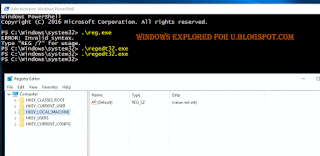
It will Open Registry editor ??
How to Open Regedit using Run Command
Ever heared about run command ? if not then you will know what it is now..
1) Just press Windows + R Key
The Window, that was displayed now is run command, using this you can run any program.
2) Type the command regedit
It will Open Registry editor
These are the easiest ways to access registry HKey in Windows 10, which are nothing but the part of registry key,
Bonus way..
I like to show the easiest way that comes in handy, but these wont work in some builds of earlier version of Windows like 7.
1) Press Windows Key
2) Type the command regedit
3) Select the top most result ( regedit run command)
It will Open Registry editor..
Thats it..
Now, you had learnt how to open registry editor in windows using different methods, You can use
this methods to show how to Find Registry editor in Windows 10 when someone ask you how to
do it, remember you dont need to download Registry editor, as it is available by default ..
Hope it is helpful.
builds of Windows like Windows 8.1, Windows 8 and Windows 7 - Tutorial
We people who are familar with some knowledge of Windows will instruct you to open registry
editor and do that task, this task,etc.. But only some of us will show the way to open Registry editor
in windows 10. When it comes to customizing Operating System (especially windows) we need to
know the way of Opening registry to edit or for altering registry.
So, in this post lets see how to Open registry editor in Windows ...
There are many ways, we can access the Registry editor on Windows 10
Listed below are the most common and easiest ways to open regedit.
How to Open regedit in Windows 10 through Command Prompt and How to run registry editor as Administrator.
1) First Run Command Prompt As Administrator..
Dont know, how it is ?? dont worry my friend, check the below link, i had shown how it is
[ How to Run Cmd as Administrator]
2) Type the command regedit
It will Open Registry editor as Admin.
How to Open regedit in Windows 10 through Powershell
1) Launch Powershell
[Helpful link : how to Open Powershell in Windows 10]
2) Type the command regedit
or . egedt32.exe
It will Open Registry editor ??
How to Open Regedit using Run Command
Ever heared about run command ? if not then you will know what it is now..
1) Just press Windows + R Key
The Window, that was displayed now is run command, using this you can run any program.
2) Type the command regedit
It will Open Registry editor
These are the easiest ways to access registry HKey in Windows 10, which are nothing but the part of registry key,
Bonus way..
I like to show the easiest way that comes in handy, but these wont work in some builds of earlier version of Windows like 7.
1) Press Windows Key
2) Type the command regedit
3) Select the top most result ( regedit run command)
It will Open Registry editor..
Thats it..
Now, you had learnt how to open registry editor in windows using different methods, You can use
this methods to show how to Find Registry editor in Windows 10 when someone ask you how to
do it, remember you dont need to download Registry editor, as it is available by default ..
Hope it is helpful.
Available link for download
Friday, February 24, 2017
Where is My computer how to open it and restore on desktop in Windows 10 Updated Beginners guide
Where is My computer how to open it and restore on desktop in Windows 10 Updated Beginners guide
How to open my computer in windows 10 - Thats what we gonna see in this post. If you are new
to windows 10 then the first thing you will notice is my computer icon missing in desktop. You
may think about it like where did my desktop go on windows 10,that was working before upgrade
or clean installation. if you are the one who search my computer then
here is an post that will show you how to put my computer on desktop and how to open my
computer in Windows 10. -Works on Windows 10
Creators Update, Windows 10 Anniversary Update, and other editions of Windows like Windows 10
earlier builds like Aug 2015 and Nov 2015 builds.

Where is my computer in Windows 10 ?
First, i like to tell a important note.. there is no my computer and you will no longer find my
computer in windows 10??
just joking., dont be serious.. you wont see the my computer as it is in Windows 10 because they
had renamed the My computer to This PC in Windows 10. So start saying This PC from now on.
How to open my computer in Windows 10 ?
There are many ways you can open my computer or This PC however here is an easiest way to open
my computer in Windows 10.
1) Press Windows Key
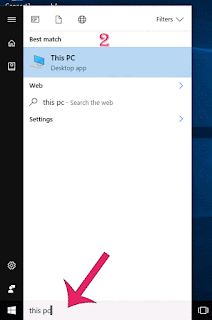
2) Type This PC
3) Select the top most result ( This PC) desktop app
It will open my computer in your PC.
How to get my computer on desktop in windows 10..
We had opened the this PC app, now its time to create shortcut for this PC in desktop
just follow the below steps..
If you wish to create shortcut for my computer to launch on Windows 10, then you are lucky as you
dont need to do some great tasks, all you just need to do is to enable its desktop icon..
if you wish to enable desktop icon for my computer, then simply follow the steps shown in the below
Post.
How to put my computer to desktop [Link]
Thats it..
Using the steps shown in the post, you can pin my computer to desktop or you can put my computer
on any desktop and laptops..
Comment if you have any doubts..
Hope it is helpful.
Are you a beginner ? then here are all posts that deals with mastering basics of Windows 10.
Click to see all the basic tutorials
to windows 10 then the first thing you will notice is my computer icon missing in desktop. You
may think about it like where did my desktop go on windows 10,that was working before upgrade
or clean installation. if you are the one who search my computer then
here is an post that will show you how to put my computer on desktop and how to open my
computer in Windows 10. -Works on Windows 10
Creators Update, Windows 10 Anniversary Update, and other editions of Windows like Windows 10
earlier builds like Aug 2015 and Nov 2015 builds.
Where is my computer in Windows 10 ?
First, i like to tell a important note.. there is no my computer and you will no longer find my
computer in windows 10??
just joking., dont be serious.. you wont see the my computer as it is in Windows 10 because they
had renamed the My computer to This PC in Windows 10. So start saying This PC from now on.
How to open my computer in Windows 10 ?
There are many ways you can open my computer or This PC however here is an easiest way to open
my computer in Windows 10.
1) Press Windows Key
2) Type This PC
3) Select the top most result ( This PC) desktop app
It will open my computer in your PC.
How to get my computer on desktop in windows 10..
We had opened the this PC app, now its time to create shortcut for this PC in desktop
just follow the below steps..
If you wish to create shortcut for my computer to launch on Windows 10, then you are lucky as you
dont need to do some great tasks, all you just need to do is to enable its desktop icon..
if you wish to enable desktop icon for my computer, then simply follow the steps shown in the below
Post.
How to put my computer to desktop [Link]
Thats it..
Using the steps shown in the post, you can pin my computer to desktop or you can put my computer
on any desktop and laptops..
Comment if you have any doubts..
Hope it is helpful.
Are you a beginner ? then here are all posts that deals with mastering basics of Windows 10.
Click to see all the basic tutorials
Available link for download
Saturday, February 18, 2017
5 Commercial Fonts with Special Characters That Open in Silhouette Studio
5 Commercial Fonts with Special Characters That Open in Silhouette Studio
I know a lot of Silhouette CAMEO and Portrait users are always on the lookout for beautiful commercial fonts - especially those fonts with special characters. That's why I was so excited to learn that The Hungry JPEG's newest bundle only contains fonts with special glyphs 100% accessible in Silhouette Studio!
The Five Fonts for $5 Bundle includes five beautiful Script fonts that all come with the commercial licenses and all open in Silhouette Studio without the need for any other software! And I'm sweetening the deal for you because I've created a free Silhouette Studio cut file using the Scriptline font and I'm sharing it with you all for free!
 |
| This is a sponsored post, but all opinions are my own. |
Available link for download
Subscribe to:
Posts (Atom)