Showing posts with label way. Show all posts
Showing posts with label way. Show all posts
Sunday, February 26, 2017
How to turn off or disable sleep mode in Windows 10 Updated Beginners way
How to turn off or disable sleep mode in Windows 10 Updated Beginners way
Turn off or Disable sleep mode in Windows 10 - thats what we gonna
see in this post - Works on Windows 10 Creators Update, Windows 10
Anniversary Update, and other editions of Windows like Windows 10 earlier builds like Aug 2015
and Nov 2015 builds.
Everyday, we are seeing different posts that help beginners alot.. like how to pin an app to start
menu, taskbar and how to unpin the same... In this post lets see how to disable sleep mode in
windows 10.
to disable sleep function or to disable sleep mode in windows 10 , we dont need an software to do
the process, all we need to explore the options which im gonna in this post..
Where is sleep mode located??
See this post which says where you can find the sleep mode settings( will open in new window)..
the above post, shows only where its settings are located, but to turn off or disable sleep mode you
need to follow this post..
How to remove sleep mode from start menu and shutdown menu..
Just follow the below steps..
1) Open Control Panel.
[Helpful link : How to Open control panel in Windows 10 in different ways ]
Step 3 : Click on Hardware and Sound.
Step 4 : Find and Click On Change What the Power buttons do.
"the Option Change What the Power button do Will be Available under Power Options on right pane.
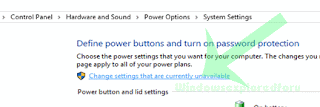
Step 5 : Click on Change Settings that Are unavailable on the Window that Opens.
see in this post - Works on Windows 10 Creators Update, Windows 10
Anniversary Update, and other editions of Windows like Windows 10 earlier builds like Aug 2015
and Nov 2015 builds.
Everyday, we are seeing different posts that help beginners alot.. like how to pin an app to start
menu, taskbar and how to unpin the same... In this post lets see how to disable sleep mode in
windows 10.
to disable sleep function or to disable sleep mode in windows 10 , we dont need an software to do
the process, all we need to explore the options which im gonna in this post..
Where is sleep mode located??
See this post which says where you can find the sleep mode settings( will open in new window)..
the above post, shows only where its settings are located, but to turn off or disable sleep mode you
need to follow this post..
How to remove sleep mode from start menu and shutdown menu..
Just follow the below steps..
1) Open Control Panel.
[Helpful link : How to Open control panel in Windows 10 in different ways ]
Step 3 : Click on Hardware and Sound.
Step 4 : Find and Click On Change What the Power buttons do.
"the Option Change What the Power button do Will be Available under Power Options on right pane.
Step 5 : Click on Change Settings that Are unavailable on the Window that Opens.
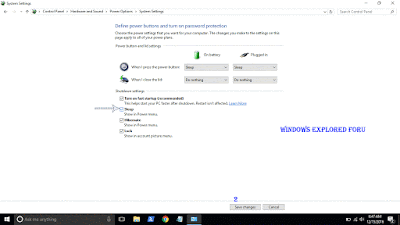
Step 6 : Clicking on it will enable grayed out shutdown settings..
Below the shutdown settings ,you will see various options like Turn on Fast startup, Sleep ,
Hibernate,etc..
Hibernate,etc..
Step 7 : Uncheck the Sleep option check box.
Step 8 : Click on Save Changes..
Thats it...
Now, visit again your start menu.. Boom?? sleep problem will be resolved you will get back your
sleep option, ..
sleep option, ..
Enjoy..
Available link for download

Saturday, February 25, 2017
How to Open Registry editor in Windows 10 Beginners way
How to Open Registry editor in Windows 10 Beginners way
How to open registry editor in Windows 10 - Creators Update, Anniversary Update and earlier
builds of Windows like Windows 8.1, Windows 8 and Windows 7 - Tutorial
We people who are familar with some knowledge of Windows will instruct you to open registry
editor and do that task, this task,etc.. But only some of us will show the way to open Registry editor
in windows 10. When it comes to customizing Operating System (especially windows) we need to
know the way of Opening registry to edit or for altering registry.
So, in this post lets see how to Open registry editor in Windows ...
There are many ways, we can access the Registry editor on Windows 10
Listed below are the most common and easiest ways to open regedit.
How to Open regedit in Windows 10 through Command Prompt and How to run registry editor as Administrator.
1) First Run Command Prompt As Administrator..
Dont know, how it is ?? dont worry my friend, check the below link, i had shown how it is
[ How to Run Cmd as Administrator]
2) Type the command regedit
It will Open Registry editor as Admin.
How to Open regedit in Windows 10 through Powershell
1) Launch Powershell
[Helpful link : how to Open Powershell in Windows 10]
2) Type the command regedit
or . egedt32.exe
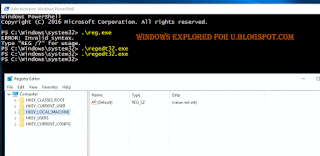
It will Open Registry editor ??
How to Open Regedit using Run Command
Ever heared about run command ? if not then you will know what it is now..
1) Just press Windows + R Key
The Window, that was displayed now is run command, using this you can run any program.
2) Type the command regedit
It will Open Registry editor
These are the easiest ways to access registry HKey in Windows 10, which are nothing but the part of registry key,
Bonus way..
I like to show the easiest way that comes in handy, but these wont work in some builds of earlier version of Windows like 7.
1) Press Windows Key
2) Type the command regedit
3) Select the top most result ( regedit run command)
It will Open Registry editor..
Thats it..
Now, you had learnt how to open registry editor in windows using different methods, You can use
this methods to show how to Find Registry editor in Windows 10 when someone ask you how to
do it, remember you dont need to download Registry editor, as it is available by default ..
Hope it is helpful.
builds of Windows like Windows 8.1, Windows 8 and Windows 7 - Tutorial
We people who are familar with some knowledge of Windows will instruct you to open registry
editor and do that task, this task,etc.. But only some of us will show the way to open Registry editor
in windows 10. When it comes to customizing Operating System (especially windows) we need to
know the way of Opening registry to edit or for altering registry.
So, in this post lets see how to Open registry editor in Windows ...
There are many ways, we can access the Registry editor on Windows 10
Listed below are the most common and easiest ways to open regedit.
How to Open regedit in Windows 10 through Command Prompt and How to run registry editor as Administrator.
1) First Run Command Prompt As Administrator..
Dont know, how it is ?? dont worry my friend, check the below link, i had shown how it is
[ How to Run Cmd as Administrator]
2) Type the command regedit
It will Open Registry editor as Admin.
How to Open regedit in Windows 10 through Powershell
1) Launch Powershell
[Helpful link : how to Open Powershell in Windows 10]
2) Type the command regedit
or . egedt32.exe
It will Open Registry editor ??
How to Open Regedit using Run Command
Ever heared about run command ? if not then you will know what it is now..
1) Just press Windows + R Key
The Window, that was displayed now is run command, using this you can run any program.
2) Type the command regedit
It will Open Registry editor
These are the easiest ways to access registry HKey in Windows 10, which are nothing but the part of registry key,
Bonus way..
I like to show the easiest way that comes in handy, but these wont work in some builds of earlier version of Windows like 7.
1) Press Windows Key
2) Type the command regedit
3) Select the top most result ( regedit run command)
It will Open Registry editor..
Thats it..
Now, you had learnt how to open registry editor in windows using different methods, You can use
this methods to show how to Find Registry editor in Windows 10 when someone ask you how to
do it, remember you dont need to download Registry editor, as it is available by default ..
Hope it is helpful.
Available link for download
Subscribe to:
Posts (Atom)