Showing posts with label do. Show all posts
Showing posts with label do. Show all posts
Friday, March 10, 2017
Resize live tiles in Windows 10 How to do tutorial
Resize live tiles in Windows 10 How to do tutorial
Resize live tiles in Windows 10 - How to do tutorial thats what we gonna
see in this post - Works on Windows 10 Creators Update, Windows 10
Anniversary Update, and other editions of Windows like Windows 10 earlier builds like Aug 2015
and Nov 2015 builds.
In our last post we had seen how to resize the start screen and how to resize the taskbar in
windows 10. In this post lets see how to resize live tiles in windows 10
Do you any software ?
We dont need an software to resize live tiles in windows 10.
just follow the below steps..
How to resize live tiles in Windows 10
1) Press Windows (logo) key on your keyboard or press start button
2) On, your right pane you will find the live tiles..
[Helpful link : How to turn on or turn off live tiles on windows 10 ]
3) Right click on the live tile
4) You will find many options like Unpin from start,Resize and more...
5) Click on Resize you will see options like small ,medium and large
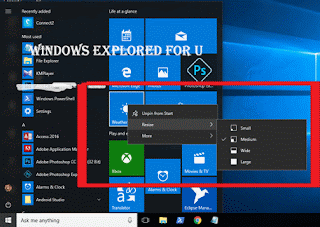
How to resize the live tile to short..
If you wish to make the live tile look smaller, then simply click on small
How to make live tile to wide..
If you wish to make the live tile look wider, then simply follow steps 1 to 5, then
click on wide.
How to make live tile to look large...
If you wish to make the live tile look larger, then simply follow steps 1 to 5, then
click on Large.
How to make live tile to look Medium...
If you wish to make the live tile look medium, then simply follow steps 1 to 5, then
click on Medium.
Thats it..
you had learnt how to resize live tiles in windows 10, which helps in customize start menu of
windows 10.
Hope it is helpful.
Click to see all Windows 10 basic articles..
see in this post - Works on Windows 10 Creators Update, Windows 10
Anniversary Update, and other editions of Windows like Windows 10 earlier builds like Aug 2015
and Nov 2015 builds.
In our last post we had seen how to resize the start screen and how to resize the taskbar in
windows 10. In this post lets see how to resize live tiles in windows 10
Do you any software ?
We dont need an software to resize live tiles in windows 10.
just follow the below steps..
How to resize live tiles in Windows 10
1) Press Windows (logo) key on your keyboard or press start button
2) On, your right pane you will find the live tiles..
[Helpful link : How to turn on or turn off live tiles on windows 10 ]
3) Right click on the live tile
4) You will find many options like Unpin from start,Resize and more...
5) Click on Resize you will see options like small ,medium and large
How to resize the live tile to short..
If you wish to make the live tile look smaller, then simply click on small
How to make live tile to wide..
If you wish to make the live tile look wider, then simply follow steps 1 to 5, then
click on wide.
How to make live tile to look large...
If you wish to make the live tile look larger, then simply follow steps 1 to 5, then
click on Large.
How to make live tile to look Medium...
If you wish to make the live tile look medium, then simply follow steps 1 to 5, then
click on Medium.
Thats it..
you had learnt how to resize live tiles in windows 10, which helps in customize start menu of
windows 10.
Hope it is helpful.
Click to see all Windows 10 basic articles..
Available link for download

Saturday, March 4, 2017
Turn off or disable Metered connections in Window 10 we need to do it for Windows 10 Creators Update Guide
Turn off or disable Metered connections in Window 10 we need to do it for Windows 10 Creators Update Guide
Turn off or disable Metered connections in windows 10 - Thats what we gonna see in this post...
Works on Windows 10
Creators Update, Windows 10 Anniversary Update, and other editions of Windows like Windows 10
earlier builds like Aug 2015 and Nov 2015 builds...
In our last post, we had discussed how to turn on metered connections in Windows 10 so that you
can disable or delay updates, Prevent apps from auto downloading,etc..But ,if you have changed
your mind or wish to try the latest windows 10 build then you need to remove metered connections
for windows 10 download that updates. So here is a post, on how to do it..
[Check the above video tutorial,if you wish]
How to disable metered connection in Windows 10
1) Press Windows + I which will open settings.
2) Select Network & Internet.
3) Click on WiFi tab on the left pane.
4) Select Manage known networks option(Which will be on right Pane).
5) It will open a new window,on that click on the Network you wish to turn off metered connection.
6) When you clicked,it will Show Properties and forget, Select Properties.
7) Scroll down and Find Metered connection Slide/Click on left Side of the Option that available
under Metered Connections,show that it shows OFF.
Thats it...
Works on Windows 10
Creators Update, Windows 10 Anniversary Update, and other editions of Windows like Windows 10
earlier builds like Aug 2015 and Nov 2015 builds...
In our last post, we had discussed how to turn on metered connections in Windows 10 so that you
can disable or delay updates, Prevent apps from auto downloading,etc..But ,if you have changed
your mind or wish to try the latest windows 10 build then you need to remove metered connections
for windows 10 download that updates. So here is a post, on how to do it..
[Check the above video tutorial,if you wish]
Do you need any software ?
No, you dont need to download software to disable metered connection in Windows 10, just follow
the below steps..
the below steps..
How to disable metered connection in Windows 10
1) Press Windows + I which will open settings.
2) Select Network & Internet.
3) Click on WiFi tab on the left pane.
4) Select Manage known networks option(Which will be on right Pane).
5) It will open a new window,on that click on the Network you wish to turn off metered connection.
6) When you clicked,it will Show Properties and forget, Select Properties.
7) Scroll down and Find Metered connection Slide/Click on left Side of the Option that available
under Metered Connections,show that it shows OFF.
Thats it...
Are you a beginner ? then here are all posts that deals with mastering basics of Windows 10.
Click to see all the basic tutorials
Click to see all the basic tutorials
Available link for download
Friday, March 3, 2017
Disciplinary action will be taken if you do this DoPT order enclosed
Disciplinary action will be taken if you do this DoPT order enclosed
Any grievance related to your service matters should flow through proper channel. Instead if you directly complaint to higher authorities disciplinary action will be initiated as per the order below. So guys please be careful.

Available link for download
Tuesday, February 28, 2017
How do i find my bitlocker Encryption Key to unlock in windows 10 Solved
How do i find my bitlocker Encryption Key to unlock in windows 10 Solved
Find Bitlocker recovery Key - Thats what we are gonna see in our todays post.
Today, while i was having fun with my friend, he accidentally made a bitlocker encryption to one of
his drives. Since, we are in a group talking with each other, he forget to note the recovery key.
He doesnt know what to do next ( Even me too) because the drive has some sensitive info, which we
required in next couple of days. Suddenly we begin to examine every possible solution that we can
use to recover, but most of them went avail. If you are having the same issue, then here is an guide
that may help you.

Solution 1 : Try searching for recovery key.
Windows will prompt you to save your recovery key on a safe place, so check all your drives,plugin in your USB device or external device, chances are you may have transferred it to keep secure..
1) Hit Windows Key
2) Type Recovery key
3) It may pop up on the recovery key on our search result..
Solution 2 : In Microsoft Account
Windows will backup your Bitlocker key on your Microsoft account. So, search on your microsoft account, chances are it is backuped on your Microsoft Account.
Check the below link
http://go.microsoft.com/fwlink/p/?LinkId=237614
Solution 3 : Your Admin
Since Microsoft follows the same method till now, we can see it to our Purpose...
Your PC will have Administrator right ? Ask his/her key and try it.. Trust me it will work if s/he doesnt changed his/her key.
Solution 4 : Using Powershell
This method is my favorite one..But it wont return result to everyone..
Since, Bitlocker is the one that safeguards our drive, try to get the recovery key using it..
{Its like person giving his/her home key to thief, thinking that thief wont steal anything, your PC will give it to you, thinking that its you are requesting the key..}
1) Open Powershell
[See : How to open powershell in Windows 10]
2) Type the following command
Get-BitlockerVolume -Mountpoint (your encrypted drives letter).KeyProtector
for example : if your locked drive was d, type (get-bitlockervolume -mountpoint d).Keyprotector
3) Hit enter,,
it wont work for sure, but give it a try chances are it may work for you.
(or) try Suspend-BitLocker -MountPoint "C:" -RebootCount 0
Replace "C:" with your drive letter
( or) Try this command
Enable-BitLockerAutoUnlock -MountPoint "c:"
Replace E with your drive letter..
The above command will enable auto unlock to your bitlocker, who knows it may work for you too.
Thats it...
If Everything fails...
try to remember every thing you did on that day.. It is possible to recover your data when you have
the memory capacity.
Dont be discouraged.. Sit alone, close your Eyes, try to remember some characters..
Note it down.. No problem whether it is one or two just write it down.
Now, look on your mind again..try to remember again, you will find another any two characters, note that too..
Note the place you think it was for example : the letters you remember may be your last 2 characters.
Just note that down too..
Open command prompt
Type the following command
manage -bde -unlock -certificate -ct thatthingyouwrote -pin yourdriveletter :
Replace the appropriate values..
for example : Manage -bde -unlock -certificate -ct f4cd -pin F:
This is like we are instructing computer to look for certificate that starts with f4cd and unlock it..
2) Hit enter.
(or) Else try this..
Search for online how much a Bitlocker key will have maximum as its characters..
Write every possible combinations that may work and try that things on your Bitlocker.
Believe Our Mind is Much powerful than you think, because its our mind that designed this computers too.
We, as friends used this last method as our PC hadnt connected to internet on that time..,
it worked..
So, dont be discouraged.
Just try it out..
Today, while i was having fun with my friend, he accidentally made a bitlocker encryption to one of
his drives. Since, we are in a group talking with each other, he forget to note the recovery key.
He doesnt know what to do next ( Even me too) because the drive has some sensitive info, which we
required in next couple of days. Suddenly we begin to examine every possible solution that we can
use to recover, but most of them went avail. If you are having the same issue, then here is an guide
that may help you.
Solution 1 : Try searching for recovery key.
Windows will prompt you to save your recovery key on a safe place, so check all your drives,plugin in your USB device or external device, chances are you may have transferred it to keep secure..
1) Hit Windows Key
2) Type Recovery key
3) It may pop up on the recovery key on our search result..
Solution 2 : In Microsoft Account
Windows will backup your Bitlocker key on your Microsoft account. So, search on your microsoft account, chances are it is backuped on your Microsoft Account.
Check the below link
http://go.microsoft.com/fwlink/p/?LinkId=237614
Solution 3 : Your Admin
Since Microsoft follows the same method till now, we can see it to our Purpose...
Your PC will have Administrator right ? Ask his/her key and try it.. Trust me it will work if s/he doesnt changed his/her key.
Solution 4 : Using Powershell
This method is my favorite one..But it wont return result to everyone..
Since, Bitlocker is the one that safeguards our drive, try to get the recovery key using it..
{Its like person giving his/her home key to thief, thinking that thief wont steal anything, your PC will give it to you, thinking that its you are requesting the key..}
1) Open Powershell
[See : How to open powershell in Windows 10]
2) Type the following command
Get-BitlockerVolume -Mountpoint (your encrypted drives letter).KeyProtector
for example : if your locked drive was d, type (get-bitlockervolume -mountpoint d).Keyprotector
3) Hit enter,,
it wont work for sure, but give it a try chances are it may work for you.
(or) try Suspend-BitLocker -MountPoint "C:" -RebootCount 0
Replace "C:" with your drive letter
( or) Try this command
Enable-BitLockerAutoUnlock -MountPoint "c:"
Replace E with your drive letter..
The above command will enable auto unlock to your bitlocker, who knows it may work for you too.
Thats it...
If Everything fails...
try to remember every thing you did on that day.. It is possible to recover your data when you have
the memory capacity.
Dont be discouraged.. Sit alone, close your Eyes, try to remember some characters..
Note it down.. No problem whether it is one or two just write it down.
Now, look on your mind again..try to remember again, you will find another any two characters, note that too..
Note the place you think it was for example : the letters you remember may be your last 2 characters.
Just note that down too..
Open command prompt
Type the following command
manage -bde -unlock -certificate -ct thatthingyouwrote -pin yourdriveletter :
Replace the appropriate values..
for example : Manage -bde -unlock -certificate -ct f4cd -pin F:
This is like we are instructing computer to look for certificate that starts with f4cd and unlock it..
2) Hit enter.
(or) Else try this..
Search for online how much a Bitlocker key will have maximum as its characters..
Write every possible combinations that may work and try that things on your Bitlocker.
Believe Our Mind is Much powerful than you think, because its our mind that designed this computers too.
We, as friends used this last method as our PC hadnt connected to internet on that time..,
it worked..
So, dont be discouraged.
Just try it out..
Available link for download
Friday, February 10, 2017
How do i reinstall Windows 10 Tutorial
How do i reinstall Windows 10 Tutorial
How to i reinstall Windows 10 - Thats what we gonna see in this post.. If you have questions like
How do i reinstall Windows 10, how to do i reinstall Windows 10 when i have no windows 10
media, then here is an guide.
You can reinstall the windows 10 when your hard drive crash. or if you have any errors that happens
in the name of the DPC Watchdog violation or any Blue screen of death errors ..
Even though the Blue screen of death [BSOD] happens now, then (who knows it may be also forever )
for every simple reason like improper configuration, which means your hardware doesnt meet the
required hardware configuration to run Windows 10. Even though Microsoft Says, we can run
Windows 10 when our device runs Windows 8, but the truth is it depends on the System
configuration.
[See : What is the system requirements for Windows 10]
You need to install Windows 10 32 bit when you have only 2 gb of ram, as installing x64 bit version
of Windows 10 will occupy more ram.
{ Click to see : How to find the amount of RAM your PC has}
Even you have enough ram and enough System configuration sometimes it may introduce restart
loop or will spoil something after Update (Like it broke WebCams on Windows 10 Anniversary
Update}..
Whatever the cause you may end by reinstalling Windows 10. But, if you dont know how to do it..
then here is an tutorial.
To assist you better i had created the above video tutorial,check that for complete steps on how to
reinstall windows 10...
Download link : https://www.microsoft.com/en-us/software-download/windows10ISO
Hope it is helpful.
How do i reinstall Windows 10, how to do i reinstall Windows 10 when i have no windows 10
media, then here is an guide.
You can reinstall the windows 10 when your hard drive crash. or if you have any errors that happens
in the name of the DPC Watchdog violation or any Blue screen of death errors ..
Even though the Blue screen of death [BSOD] happens now, then (who knows it may be also forever )
for every simple reason like improper configuration, which means your hardware doesnt meet the
required hardware configuration to run Windows 10. Even though Microsoft Says, we can run
Windows 10 when our device runs Windows 8, but the truth is it depends on the System
configuration.
[See : What is the system requirements for Windows 10]
You need to install Windows 10 32 bit when you have only 2 gb of ram, as installing x64 bit version
of Windows 10 will occupy more ram.
{ Click to see : How to find the amount of RAM your PC has}
Even you have enough ram and enough System configuration sometimes it may introduce restart
loop or will spoil something after Update (Like it broke WebCams on Windows 10 Anniversary
Update}..
Whatever the cause you may end by reinstalling Windows 10. But, if you dont know how to do it..
then here is an tutorial.
To assist you better i had created the above video tutorial,check that for complete steps on how to
reinstall windows 10...
Download link : https://www.microsoft.com/en-us/software-download/windows10ISO
Hope it is helpful.
Available link for download
Subscribe to:
Posts (Atom)