Showing posts with label live. Show all posts

Sunday, March 12, 2017

JOOX Music Live Now !

JOOX Music Live Now !


Joox Music - Live Now !


Tencent Mobility Limited

Music & Audio

Version : 3.0.1
Download


Available on

Android
Windows
Emulator


4,5
 total 1.867.609
51.322.531
4353.212
3114.843
231.411
145.612

Whats New !


Version 3.0.1


New features in Version 3.0.1
  • Fixed the problem of not being able to play downloaded songs
  • Get closer to your favorite artist in JOOX Live
  • Experience Hi-Fi quality music
  • Enjoy On-The-Go music without using mobile data
  • Fixed minor bugs

System Requirements

These apply only to phones.


App Name
JOOX Music - Live Now !
Updated
November 2, 2016
Price
Free
File Size
51.20 MB
Requires Android
Android 4.1 and up
Category
Playing Music
Developer
Tencent Mobility Limited
Version
3.0.1
Tested On
Android 4.2

Available link for download

Read more »

Friday, March 10, 2017

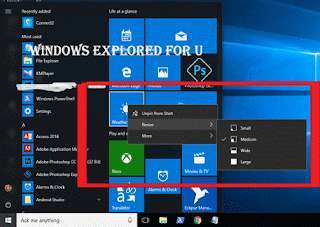
Resize live tiles in Windows 10 How to do tutorial

Resize live tiles in Windows 10 How to do tutorial


Resize live tiles in Windows 10 - How to do tutorial thats what we gonna

see in this post - Works on Windows 10 Creators Update, Windows 10

Anniversary Update, and other editions of Windows like Windows 10 earlier builds like Aug 2015

and Nov 2015 builds.

In our last post we had seen how to resize the start screen and how to resize the taskbar in

windows 10. In this post lets see how to resize live tiles in windows 10

Do you any software ?

We dont need an software to resize live tiles in windows 10.

just follow the below steps..

How to resize live tiles in Windows 10

1) Press Windows (logo) key on your keyboard or press start button

2) On, your right pane you will find the live tiles..

[Helpful link : How to turn on or turn off live tiles on windows 10 ]

3) Right click on the live tile

4) You will find many options like Unpin from start,Resize and more...

5) Click on Resize you will see options like small ,medium and large


How to resize the live tile to short..

If you wish to make the live tile look smaller, then simply click on small

How to make live tile to wide..

If you wish to make the live tile look wider, then simply follow steps 1 to 5, then

click on wide.

How to make live tile to look large...

If you wish to make the live tile look larger, then simply follow steps 1 to 5, then

click on Large.

How to make live tile to look Medium...

If you wish to make the live tile look medium, then simply follow steps 1 to 5, then

click on Medium.

Thats it..

you had learnt how to resize live tiles in windows 10, which helps in customize start menu of 

windows 10.

Hope it is helpful.

Click to see all Windows 10 basic articles..

Available link for download

Read more »

Saturday, March 4, 2017

Add Live Chat widget to Blogger

Add Live Chat widget to Blogger


Add Live Chat widget to Blogger
Today in this article we will discuss about an exciting live chat widget by chatroll.  With the help of this widget your blog visitors can chat with each other through a live chat box. It is very helpful in creating small discussions among your blog visitors. Adding this live chat widget to blogger is very easy and is a matter of few minutes.
i hope you will like my this widget also like my old widget sharing. Before i have share  Add Animated Flying Twitter Bird Widget to Blogger and a lot of people like and appreciate and before this tutorial i have share one more great widget for my friends that is Add Cool Jquery  Popup Facebook Like Box to Blogger.
Dont risk the success of your live events. Trust Chatroll to help you reach more people, engage audiences and grow your market.
Friends now we will start to how to Add Live Chat Widget to Blogger.

Part 1: Getting Live chat Widget Code


1. Open Chatroll website and Click on Signup For Free button.

2. At next screen create your new account or login with your facebook account. In my case I use Facebook login Method.

3. Once you logged in your account then Click on Create a New Live Event option.

4. Next page will be your live widget settings page. Enter Name for your widget and click Continue option.

5. Next screen is about platform selection screen. Select Blogger option.

6. Code for your live chat widget will appear. Copy this code and click Continue option.

7. Now Click on Go to Settings Now option.

8. Now a final page will appear which contains your live chat widget settings like color scheme of your widget. Configure your widget here and save the settings by clicking on Save Settings option.

Part 2: Adding Live Chat Widget to Blogger

1. Log in to your blogger account > Dashboard and select your blog.

2. Select LayoutOption and Click on Add a Gadget option.
3. Select HTML/JavaScript widget.

4. In the HTML/JavaScript widget paste the code of the live chat widget which is obtained in the Step 6 in Part 1 of the tutorial.

5. Save the widget and you are Done.

Available link for download

Read more »

Wednesday, January 18, 2017

Silhouette School Live Tickets Now on Sale For One Day Event

Silhouette School Live Tickets Now on Sale For One Day Event


I get requests weekly to come teach here, there, and everywhere and while my answer 99% of the time is, "I don't organize events, I just go where I'm invited...." we've decided there's so reason we can't host a one day event in our own back yard (I don't mean literally our back yard...). And so I'm thrilled to announce a limited number of tickets are now on sale for the first ever: Silhouette School Live. 


Eeek I can't wait to tell you all the details!

Available link for download

Read more »