Showing posts with label solved. Show all posts
Showing posts with label solved. Show all posts
Tuesday, March 14, 2017
Problem in Connecting to Internet in Windows 10 Version 1607 Updated Solved
Problem in Connecting to Internet in Windows 10 Version 1607 Updated Solved
Windows 10 Anniversary Update - Problem in Connecting to Internet - How to fix guide..
If you are in Windows 10 Anniversary Update build 1607 then the main problem you had witnessed
is your internet will broke now and then.
Such scenario was experienced by me too,as my internet connection (which i initially suspected as
ISP problem ) suddenly changes to limited in Windows 10, even though internet works on my
android device connected to WiFi. So, here is an solution that will fix network connection issue in
your Windows 10 PC that worked for me.

1) The first thing i will do whenever i faced with such issue is restarting my PC, rebooting my PC will
fix the problem most of the times .
So, try restarting my PC( not shutdown)
[Helpful link : How to reboot or restart your Windows 10 ]
2) Though, the first solution will work in most case, we cant restart our PC everytime right ? So i recommend you to run Windows network diagnostic tool..
[See : How to download Windows network diagnostic tool in Windows 10]
Those are the solutions that worked for me.. i hope it works for you to.
Hope it helps..
Update : Microsoft declared it as an known issue and they had released an update named
KB3206632 (DEC 13, 2017 UPDATE] So, download and install the update it will fix that issue..
If you are in Windows 10 Anniversary Update build 1607 then the main problem you had witnessed
is your internet will broke now and then.
Such scenario was experienced by me too,as my internet connection (which i initially suspected as
ISP problem ) suddenly changes to limited in Windows 10, even though internet works on my
android device connected to WiFi. So, here is an solution that will fix network connection issue in
your Windows 10 PC that worked for me.
1) The first thing i will do whenever i faced with such issue is restarting my PC, rebooting my PC will
fix the problem most of the times .
So, try restarting my PC( not shutdown)
[Helpful link : How to reboot or restart your Windows 10 ]
2) Though, the first solution will work in most case, we cant restart our PC everytime right ? So i recommend you to run Windows network diagnostic tool..
[See : How to download Windows network diagnostic tool in Windows 10]
Those are the solutions that worked for me.. i hope it works for you to.
Hope it helps..
Update : Microsoft declared it as an known issue and they had released an update named
KB3206632 (DEC 13, 2017 UPDATE] So, download and install the update it will fix that issue..
Available link for download

Wednesday, March 1, 2017
Bluetooth doesnt appear on Device Manager of Windows 10 Solved
Bluetooth doesnt appear on Device Manager of Windows 10 Solved
Bluetooth doesnt appear on Device Manager of Windows 10 - After upgrading from Previous
Windows 10 to latest Windows 10 ( Windows 10 Anniversary update to Windows 10 Creators
Update] Fix - Thats what we gonna see in this post.
Works on Windows 10 Creators Update, Windows 10
Anniversary Update, and other editions of Windows like Windows 10 earlier builds like Aug 2015
and Nov 2015 builds.
If your Bluetooth was missing after upgrading to Windows 10, the first solution i recommend was
to search Device manager and Update drives if necessary.

But, what if Bluetooth doesnt appear on device manager ? but you know your device have Bluetooth
because you had connected and transferred files on Previous version of Windows or Windows 10 ????
Dont worry, here is your guide..
[Helpful link : How to check whether my device have bluetooth or not in Windows 10]
1) Open Device Manager.
Dont know, how ?? Dont worry, let me help you. Follow the instructions shown in the below link..
[Helpful link : How to Open Device Manager in Windows 10 [Guide]]
2) Now, you are on device manager, Expand Other devices (or)
3) See, whether you have any Unknown device ( they will have exclamation mark or unknown device text in it)
4) Right click on the Unknown device
5) You will see many options, on that select Properties
6) It will display the properties window, Click on the details tab
7) On the property list, you can find Hardware Ids, click on it / Note it..
The Ids will be usually, look like USBVID_(somevalue).Etc something..
8) Right click on it and select Copy.
9) Now, open your browser and simply paste the ID on any search engine like google or bing
10) Visit the manufacturer website,download and install the latest driver for the device..
Remember that must be compatible to windows 10.
11) Restart Your PC
[ Helpful link : How to restart or reboot windows 10]
Thats it..
It will fix your problem..
Thats the end of this post..
Click to read all basic tutorials..
Windows 10 to latest Windows 10 ( Windows 10 Anniversary update to Windows 10 Creators
Update] Fix - Thats what we gonna see in this post.
Works on Windows 10 Creators Update, Windows 10
Anniversary Update, and other editions of Windows like Windows 10 earlier builds like Aug 2015
and Nov 2015 builds.
If your Bluetooth was missing after upgrading to Windows 10, the first solution i recommend was
to search Device manager and Update drives if necessary.
But, what if Bluetooth doesnt appear on device manager ? but you know your device have Bluetooth
because you had connected and transferred files on Previous version of Windows or Windows 10 ????
Dont worry, here is your guide..
[Helpful link : How to check whether my device have bluetooth or not in Windows 10]
1) Open Device Manager.
Dont know, how ?? Dont worry, let me help you. Follow the instructions shown in the below link..
[Helpful link : How to Open Device Manager in Windows 10 [Guide]]
2) Now, you are on device manager, Expand Other devices (or)
3) See, whether you have any Unknown device ( they will have exclamation mark or unknown device text in it)
4) Right click on the Unknown device
5) You will see many options, on that select Properties
6) It will display the properties window, Click on the details tab
7) On the property list, you can find Hardware Ids, click on it / Note it..
The Ids will be usually, look like USBVID_(somevalue).Etc something..
8) Right click on it and select Copy.
9) Now, open your browser and simply paste the ID on any search engine like google or bing
10) Visit the manufacturer website,download and install the latest driver for the device..
Remember that must be compatible to windows 10.
11) Restart Your PC
[ Helpful link : How to restart or reboot windows 10]
Thats it..
It will fix your problem..
Thats the end of this post..
Click to read all basic tutorials..
Available link for download
Tuesday, February 28, 2017
How do i find my bitlocker Encryption Key to unlock in windows 10 Solved
How do i find my bitlocker Encryption Key to unlock in windows 10 Solved
Find Bitlocker recovery Key - Thats what we are gonna see in our todays post.
Today, while i was having fun with my friend, he accidentally made a bitlocker encryption to one of
his drives. Since, we are in a group talking with each other, he forget to note the recovery key.
He doesnt know what to do next ( Even me too) because the drive has some sensitive info, which we
required in next couple of days. Suddenly we begin to examine every possible solution that we can
use to recover, but most of them went avail. If you are having the same issue, then here is an guide
that may help you.

Solution 1 : Try searching for recovery key.
Windows will prompt you to save your recovery key on a safe place, so check all your drives,plugin in your USB device or external device, chances are you may have transferred it to keep secure..
1) Hit Windows Key
2) Type Recovery key
3) It may pop up on the recovery key on our search result..
Solution 2 : In Microsoft Account
Windows will backup your Bitlocker key on your Microsoft account. So, search on your microsoft account, chances are it is backuped on your Microsoft Account.
Check the below link
http://go.microsoft.com/fwlink/p/?LinkId=237614
Solution 3 : Your Admin
Since Microsoft follows the same method till now, we can see it to our Purpose...
Your PC will have Administrator right ? Ask his/her key and try it.. Trust me it will work if s/he doesnt changed his/her key.
Solution 4 : Using Powershell
This method is my favorite one..But it wont return result to everyone..
Since, Bitlocker is the one that safeguards our drive, try to get the recovery key using it..
{Its like person giving his/her home key to thief, thinking that thief wont steal anything, your PC will give it to you, thinking that its you are requesting the key..}
1) Open Powershell
[See : How to open powershell in Windows 10]
2) Type the following command
Get-BitlockerVolume -Mountpoint (your encrypted drives letter).KeyProtector
for example : if your locked drive was d, type (get-bitlockervolume -mountpoint d).Keyprotector
3) Hit enter,,
it wont work for sure, but give it a try chances are it may work for you.
(or) try Suspend-BitLocker -MountPoint "C:" -RebootCount 0
Replace "C:" with your drive letter
( or) Try this command
Enable-BitLockerAutoUnlock -MountPoint "c:"
Replace E with your drive letter..
The above command will enable auto unlock to your bitlocker, who knows it may work for you too.
Thats it...
If Everything fails...
try to remember every thing you did on that day.. It is possible to recover your data when you have
the memory capacity.
Dont be discouraged.. Sit alone, close your Eyes, try to remember some characters..
Note it down.. No problem whether it is one or two just write it down.
Now, look on your mind again..try to remember again, you will find another any two characters, note that too..
Note the place you think it was for example : the letters you remember may be your last 2 characters.
Just note that down too..
Open command prompt
Type the following command
manage -bde -unlock -certificate -ct thatthingyouwrote -pin yourdriveletter :
Replace the appropriate values..
for example : Manage -bde -unlock -certificate -ct f4cd -pin F:
This is like we are instructing computer to look for certificate that starts with f4cd and unlock it..
2) Hit enter.
(or) Else try this..
Search for online how much a Bitlocker key will have maximum as its characters..
Write every possible combinations that may work and try that things on your Bitlocker.
Believe Our Mind is Much powerful than you think, because its our mind that designed this computers too.
We, as friends used this last method as our PC hadnt connected to internet on that time..,
it worked..
So, dont be discouraged.
Just try it out..
Today, while i was having fun with my friend, he accidentally made a bitlocker encryption to one of
his drives. Since, we are in a group talking with each other, he forget to note the recovery key.
He doesnt know what to do next ( Even me too) because the drive has some sensitive info, which we
required in next couple of days. Suddenly we begin to examine every possible solution that we can
use to recover, but most of them went avail. If you are having the same issue, then here is an guide
that may help you.
Solution 1 : Try searching for recovery key.
Windows will prompt you to save your recovery key on a safe place, so check all your drives,plugin in your USB device or external device, chances are you may have transferred it to keep secure..
1) Hit Windows Key
2) Type Recovery key
3) It may pop up on the recovery key on our search result..
Solution 2 : In Microsoft Account
Windows will backup your Bitlocker key on your Microsoft account. So, search on your microsoft account, chances are it is backuped on your Microsoft Account.
Check the below link
http://go.microsoft.com/fwlink/p/?LinkId=237614
Solution 3 : Your Admin
Since Microsoft follows the same method till now, we can see it to our Purpose...
Your PC will have Administrator right ? Ask his/her key and try it.. Trust me it will work if s/he doesnt changed his/her key.
Solution 4 : Using Powershell
This method is my favorite one..But it wont return result to everyone..
Since, Bitlocker is the one that safeguards our drive, try to get the recovery key using it..
{Its like person giving his/her home key to thief, thinking that thief wont steal anything, your PC will give it to you, thinking that its you are requesting the key..}
1) Open Powershell
[See : How to open powershell in Windows 10]
2) Type the following command
Get-BitlockerVolume -Mountpoint (your encrypted drives letter).KeyProtector
for example : if your locked drive was d, type (get-bitlockervolume -mountpoint d).Keyprotector
3) Hit enter,,
it wont work for sure, but give it a try chances are it may work for you.
(or) try Suspend-BitLocker -MountPoint "C:" -RebootCount 0
Replace "C:" with your drive letter
( or) Try this command
Enable-BitLockerAutoUnlock -MountPoint "c:"
Replace E with your drive letter..
The above command will enable auto unlock to your bitlocker, who knows it may work for you too.
Thats it...
If Everything fails...
try to remember every thing you did on that day.. It is possible to recover your data when you have
the memory capacity.
Dont be discouraged.. Sit alone, close your Eyes, try to remember some characters..
Note it down.. No problem whether it is one or two just write it down.
Now, look on your mind again..try to remember again, you will find another any two characters, note that too..
Note the place you think it was for example : the letters you remember may be your last 2 characters.
Just note that down too..
Open command prompt
Type the following command
manage -bde -unlock -certificate -ct thatthingyouwrote -pin yourdriveletter :
Replace the appropriate values..
for example : Manage -bde -unlock -certificate -ct f4cd -pin F:
This is like we are instructing computer to look for certificate that starts with f4cd and unlock it..
2) Hit enter.
(or) Else try this..
Search for online how much a Bitlocker key will have maximum as its characters..
Write every possible combinations that may work and try that things on your Bitlocker.
Believe Our Mind is Much powerful than you think, because its our mind that designed this computers too.
We, as friends used this last method as our PC hadnt connected to internet on that time..,
it worked..
So, dont be discouraged.
Just try it out..
Available link for download
Monday, February 20, 2017
Microsoft Account You need to fix your Microsoft account for apps notification in windows 10 Solved
Microsoft Account You need to fix your Microsoft account for apps notification in windows 10 Solved
Microsoft Account - You need to fix your Microsoft account for apps on your other devices to
be able to launch apps and continue experiences on this device error - How to fix in Windows 10
Creators Update, Windows 10
Anniversary Update, and other editions of Windows like Windows 10 earlier builds like Aug 2015
and Nov 2015 builds.

Why this error happens ?
This error happens mainly because your Microsoft account on the device is not verified or you hadnt
signed in to the device using Microsoft account.
How to fix it ?
The first step i recommend is to sign-in to your device using Microsoft account...
Refer this article which has some common steps on how to sign in using Microsoft account : How to
Link Windows 10 License to Microsoft Account
When you login to your PC using Microsoft account you will see the error fixed if not then as per my knowledge i can say, this error notification mainly appears because windows store doesnt have Microsoft sign-in.
Open your store app and makesure you had sign-ined using Microsoft account...
Solution 2 : Using Microsoft fix it tool
1) Download the tool from the link below
http://download.microsoft.com/download/F/2/4/F24D0C03-4181-4E5B-A23B-5C3A6B5974E3/microsoftaccounts.diagcab
2) Run the downloaded file..

3) Now,Check the box "Apply repairs Automatically"
4) Click Next.
5) Wait for sometime,it will scan for possible solutions,and will
automatically fix the issue, Click Finish/close.
be able to launch apps and continue experiences on this device error - How to fix in Windows 10
Creators Update, Windows 10
Anniversary Update, and other editions of Windows like Windows 10 earlier builds like Aug 2015
and Nov 2015 builds.
Why this error happens ?
This error happens mainly because your Microsoft account on the device is not verified or you hadnt
signed in to the device using Microsoft account.
How to fix it ?
The first step i recommend is to sign-in to your device using Microsoft account...
Refer this article which has some common steps on how to sign in using Microsoft account : How to
Link Windows 10 License to Microsoft Account
When you login to your PC using Microsoft account you will see the error fixed if not then as per my knowledge i can say, this error notification mainly appears because windows store doesnt have Microsoft sign-in.
Open your store app and makesure you had sign-ined using Microsoft account...
Solution 2 : Using Microsoft fix it tool
1) Download the tool from the link below
http://download.microsoft.com/download/F/2/4/F24D0C03-4181-4E5B-A23B-5C3A6B5974E3/microsoftaccounts.diagcab
2) Run the downloaded file..
3) Now,Check the box "Apply repairs Automatically"
4) Click Next.
5) Wait for sometime,it will scan for possible solutions,and will
automatically fix the issue, Click Finish/close.
6) Restart your PC
[Helpful link : How to restart or reboot Windows 10 PC]
Thats it..
Hope it is helpful
Available link for download
Friday, January 20, 2017
Where is program files and program data folder in Windows 10 located Solved
Where is program files and program data folder in Windows 10 located Solved
Where is program files and program data folder in Windows 10 located - thats what we gonna
see in this post - Works on Windows 10 Creators Update, Windows 10
Anniversary Update, and other editions of Windows like Windows 10 earlier builds like Aug 2015
and Nov 2015 builds.
Recently, one of our reader have difficulty in finding the program files and program data located,
that happened when he tried to uninstall the application and as usual it leaved some remains. He
wished to clear those remains, he knows that those files are stored in program files but he dont know
where it is located ..So,in this post i like to share those steps which may be helpful if you are the one
who doesnt know how to access program files in windows 10 or where is windows 10 program files
folder located or some other thing then i hope this may be helpful for you..
Please note : The program filess location is same for both x64 bit version of windows 10 and x86 bit
version of windows so, dont get confused like how to get to program files x86 on windows 10
or how to get to program files x64 on windows 10. They are all same.
Just follow the steps below..
1) The first step in finding program files location is the most needed thing.
We need to find the directory where windows was installed.
How to find the windows installed location (or)
where is windows installed on my computer?
So, first press Windows (logo) key + E Keys on your Keyboard
2) This will open This PC ( the new name of My computer)
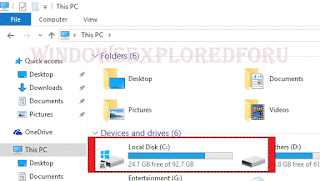
3) On that you will see various drives like local disk c, local disk d,etc..,(unless you changed the drive names)
4) Find which drive has Windows logo in it..(see the above pic)
5) The drive which has windows logo in it is our windows installed location.
6) Double click or single click it to open.
7) When you opened,you can your find the Program files..
Thats it...
Where is program data folder located in Windows 10 ..?
Program data folder is located on the same windows installed drive.. But the program data folder is
hidden by default.. you need to unhide the folders to view it..
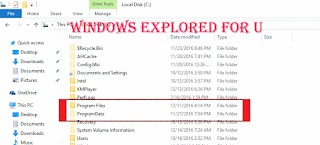 I had shown how to unhide the folders in Windows 10 in this article [Link], this also follows the
same procedure.. when you unhide the folder visit again the windows installed drive, you will find
program data folder now..
Thats it..
Hope it is helpful.
see in this post - Works on Windows 10 Creators Update, Windows 10
Anniversary Update, and other editions of Windows like Windows 10 earlier builds like Aug 2015
and Nov 2015 builds.
Recently, one of our reader have difficulty in finding the program files and program data located,
that happened when he tried to uninstall the application and as usual it leaved some remains. He
wished to clear those remains, he knows that those files are stored in program files but he dont know
where it is located ..So,in this post i like to share those steps which may be helpful if you are the one
who doesnt know how to access program files in windows 10 or where is windows 10 program files
folder located or some other thing then i hope this may be helpful for you..
Please note : The program filess location is same for both x64 bit version of windows 10 and x86 bit
version of windows so, dont get confused like how to get to program files x86 on windows 10
or how to get to program files x64 on windows 10. They are all same.
Just follow the steps below..
1) The first step in finding program files location is the most needed thing.
We need to find the directory where windows was installed.
How to find the windows installed location (or)
where is windows installed on my computer?
So, first press Windows (logo) key + E Keys on your Keyboard
2) This will open This PC ( the new name of My computer)
[The windows installed location]
3) On that you will see various drives like local disk c, local disk d,etc..,(unless you changed the drive names)
4) Find which drive has Windows logo in it..(see the above pic)
5) The drive which has windows logo in it is our windows installed location.
6) Double click or single click it to open.
7) When you opened,you can your find the Program files..
Thats it...
Where is program data folder located in Windows 10 ..?
Program data folder is located on the same windows installed drive.. But the program data folder is
hidden by default.. you need to unhide the folders to view it..
same procedure.. when you unhide the folder visit again the windows installed drive, you will find
program data folder now..
Thats it..
Hope it is helpful.
Click to see all Windows 10 basic articles..
Available link for download
Subscribe to:
Posts (Atom)